The following personalization settings is in reference to the Dynamics 365 App for Outlook. Below is a sample screenshot of the app for outlook.
If you do not have this currently available in your Outlook app, but would like to have it added, please submit a Helpdesk ticket with "Enable Dynamics 365 App for Outlook" in the subject line.
1. In Dynamics 365 (https://ahima.crm.dynamics.com/), go to Settings and select Personalization Settings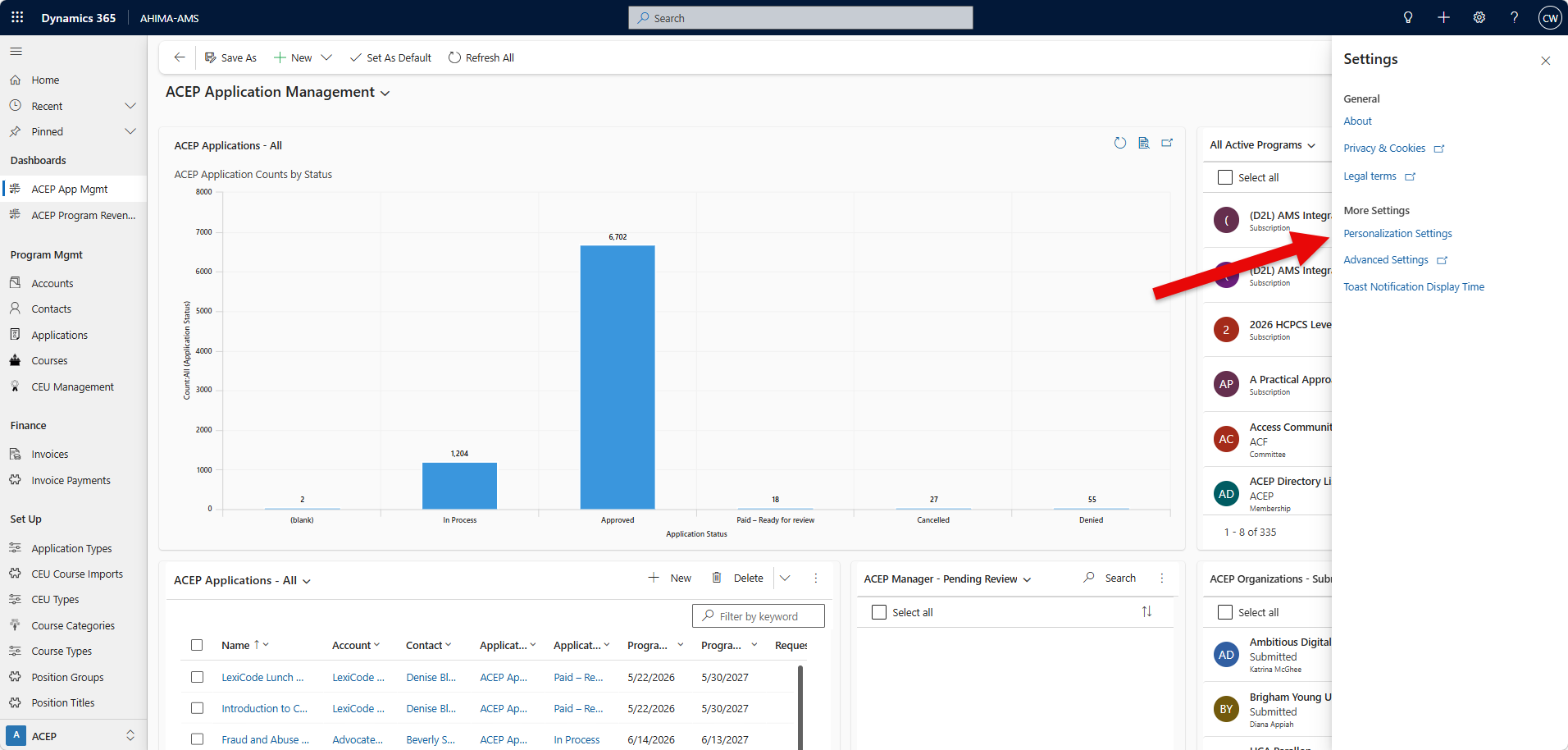
2. Navigate to the Email tab.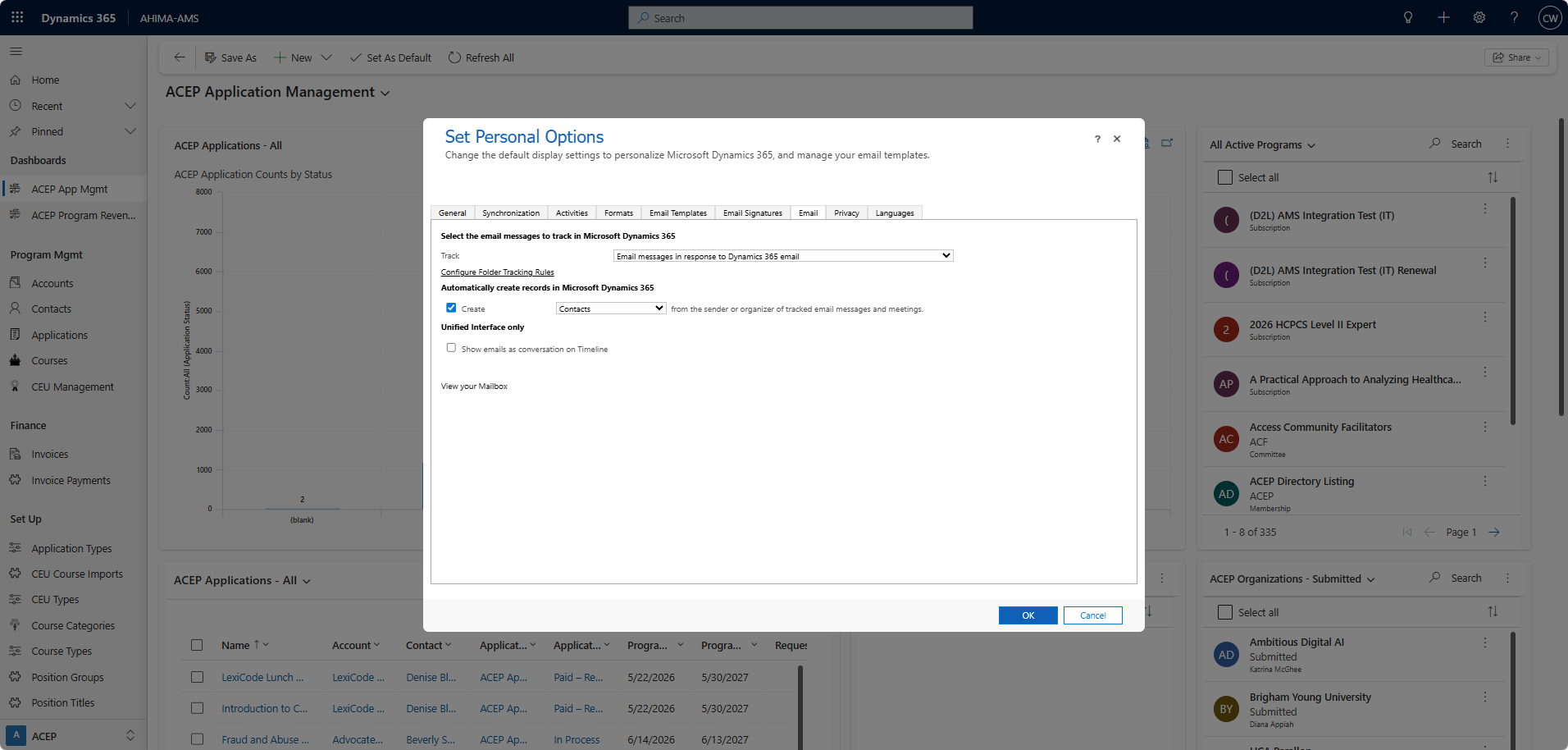
3. Configure the "Select the email messages to track in Microsoft Dynamics 365"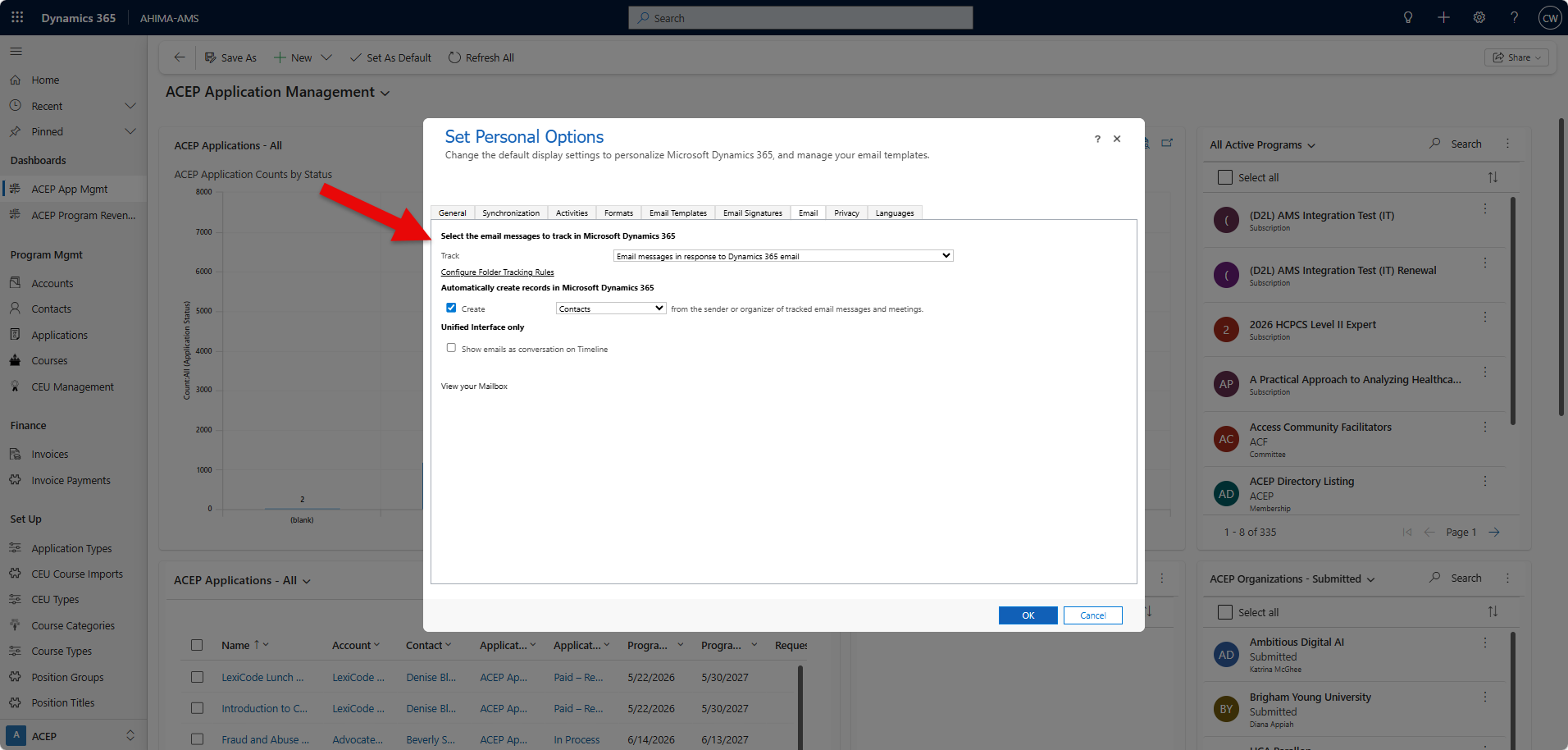
Specify whether to track all email messages or only certain types: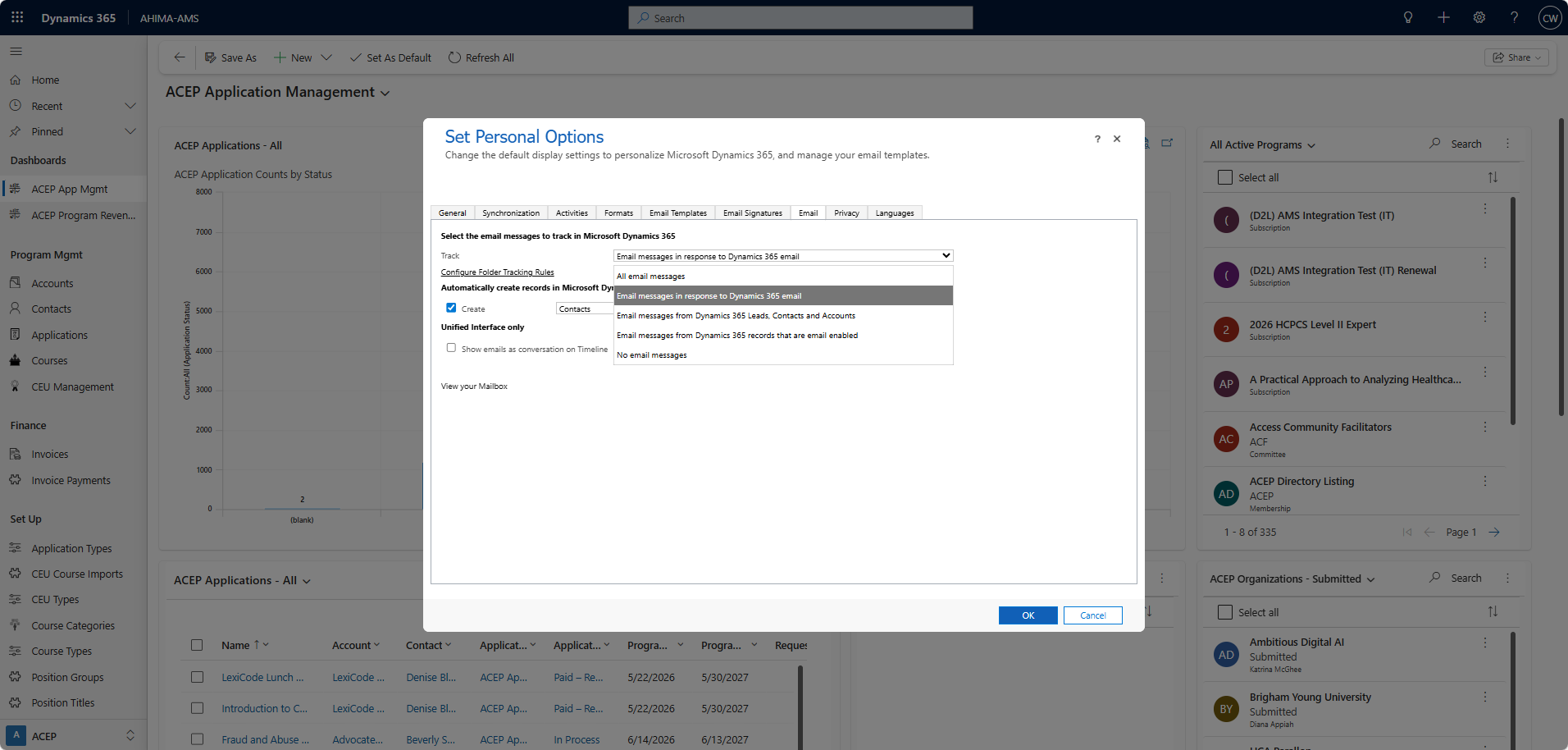
All email messages- Tracks all email messages related to Customer Engagement email messages. If you select this option, Dynamics 365 apps will track junk mail as well as business conversations..
Email messages in response to Dynamics 365 email- Only replies to or forwards of email messages that have already been tracked will be saved as email activities. (Recommended)
Email messages from Dynamics 365 apps Leads, Contacts, and Accounts- Tracks email messages only if they originate from someone with a Dynamics 365 for Customer Engagement lead, contact, or account record.
Email messages from Dynamics 365 records that are email enabled- Tracks email messages from all record types that contain an email address field.
No email messages- Will not track any messages.
(Optional) Automatically create contact or lead records for tracked email messages:
4. In the Automatically create records in Dynamics 365 for Customer Engagement section, select the Create check box, and then select Contacts or Leads from the list.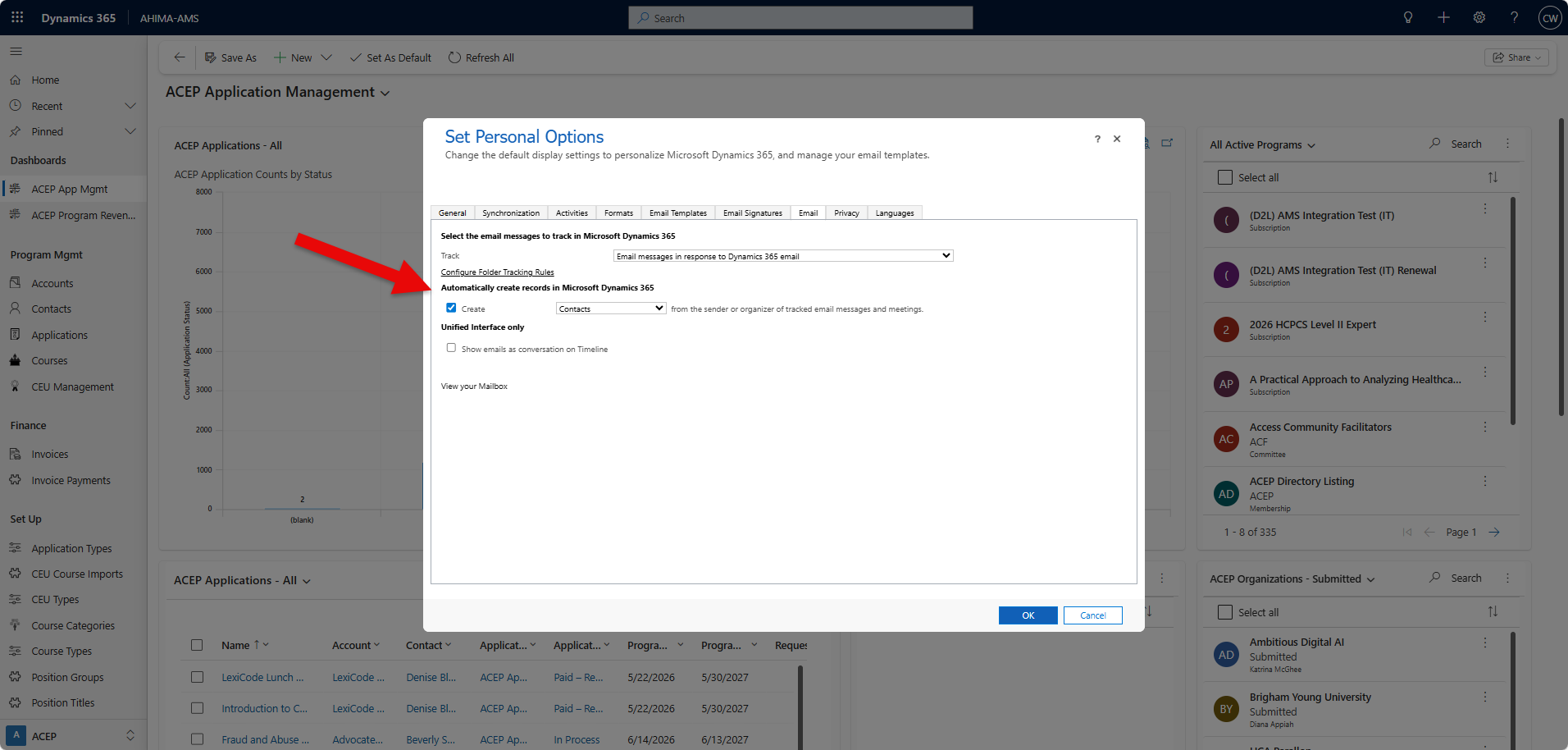
Note: Contact and lead records won’t be created if you don’t have the appropriate security permissions.
Was this article helpful?
That’s Great!
Thank you for your feedback
Sorry! We couldn't be helpful
Thank you for your feedback
Feedback sent
We appreciate your effort and will try to fix the article