Required Training:
Learning Microsoft Dynamics 365: The Basics
Related:
Dynamics General: Add Filters and Columns to Existing Views
Dynamics General: Create New View
Go to Dynamics: ahima.crm.dynamics.com (or Dynamics Production Environment: https://ahima.crm.dynamics.com/) and log in to Dynamics using your AHIMA credentials. Select one of the dashboards accordingly (e.g. AHIMA-Sales, AHIMA-AMS).
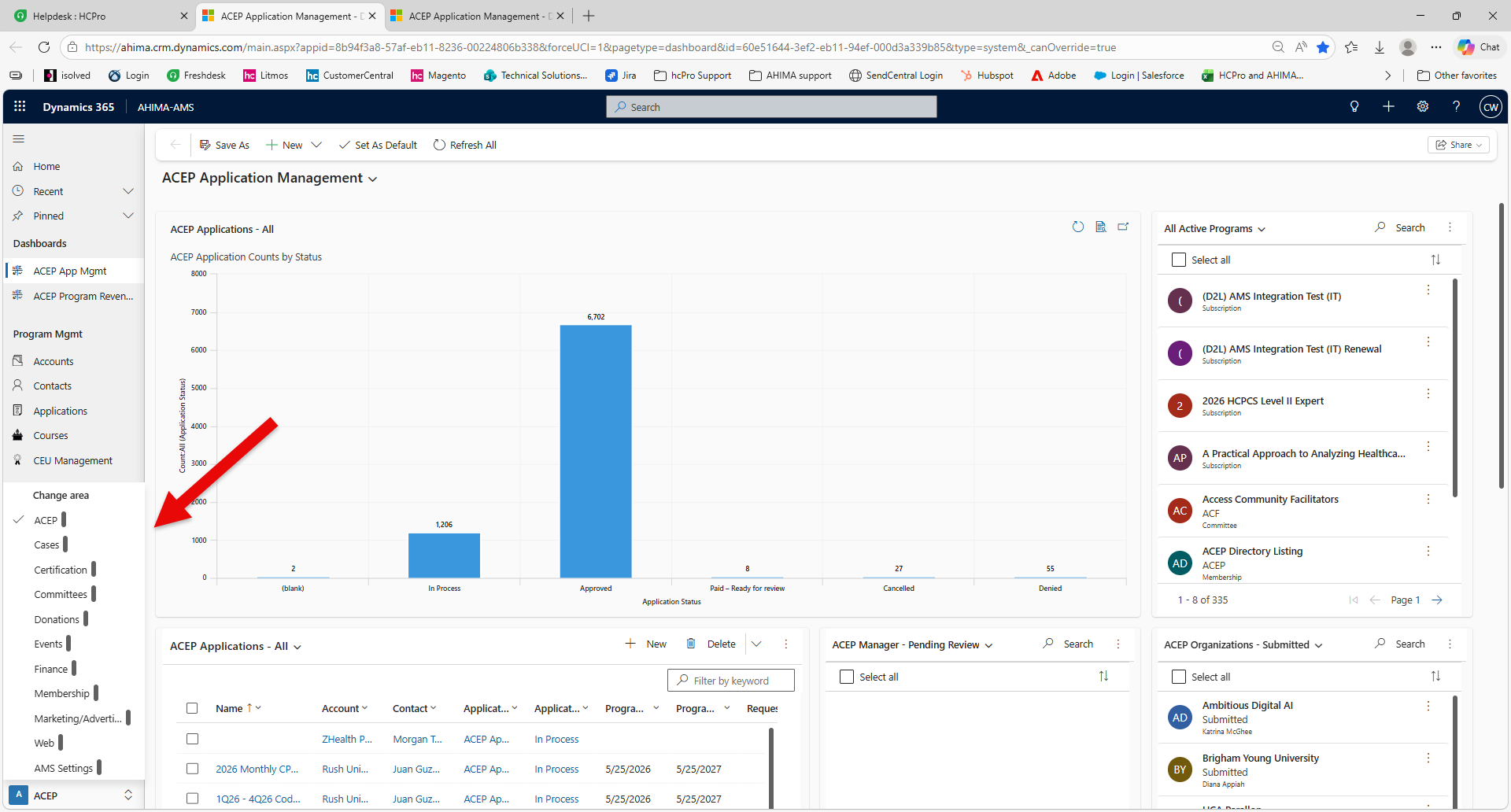
Top navigation panel:
Tip: Top search bar pulls data system-wide
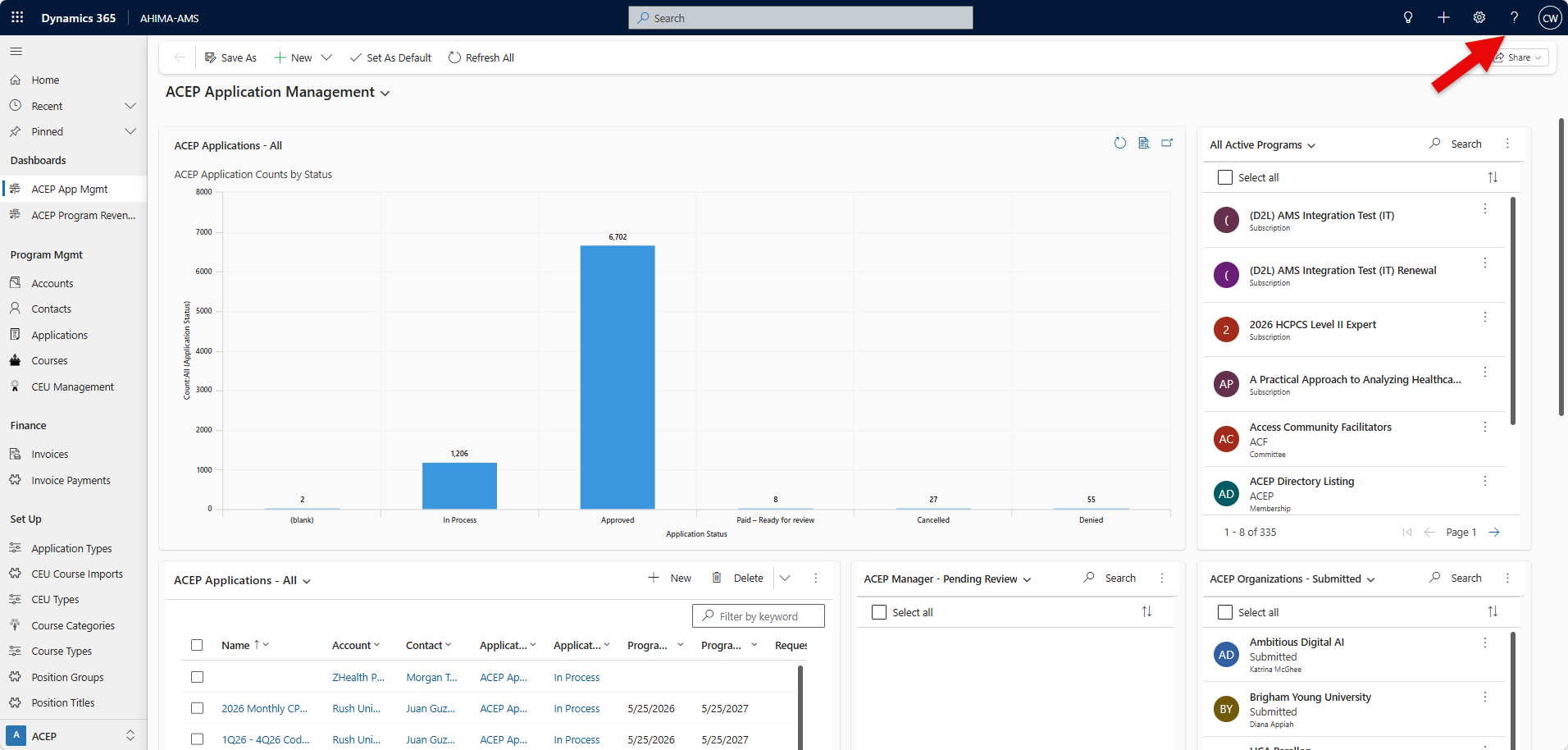
Click the assistant button for help.
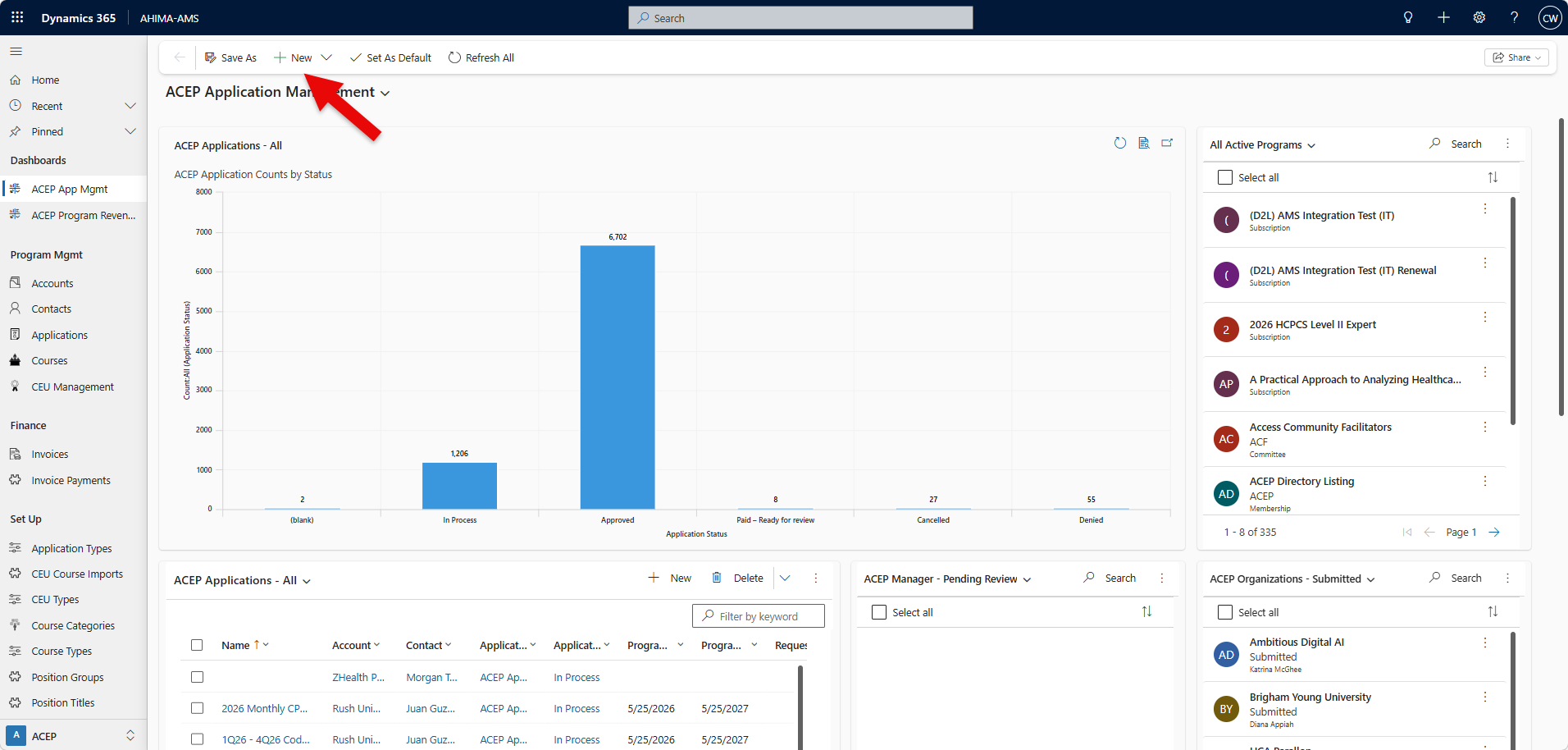
Click the + sign to add basic information quickly.
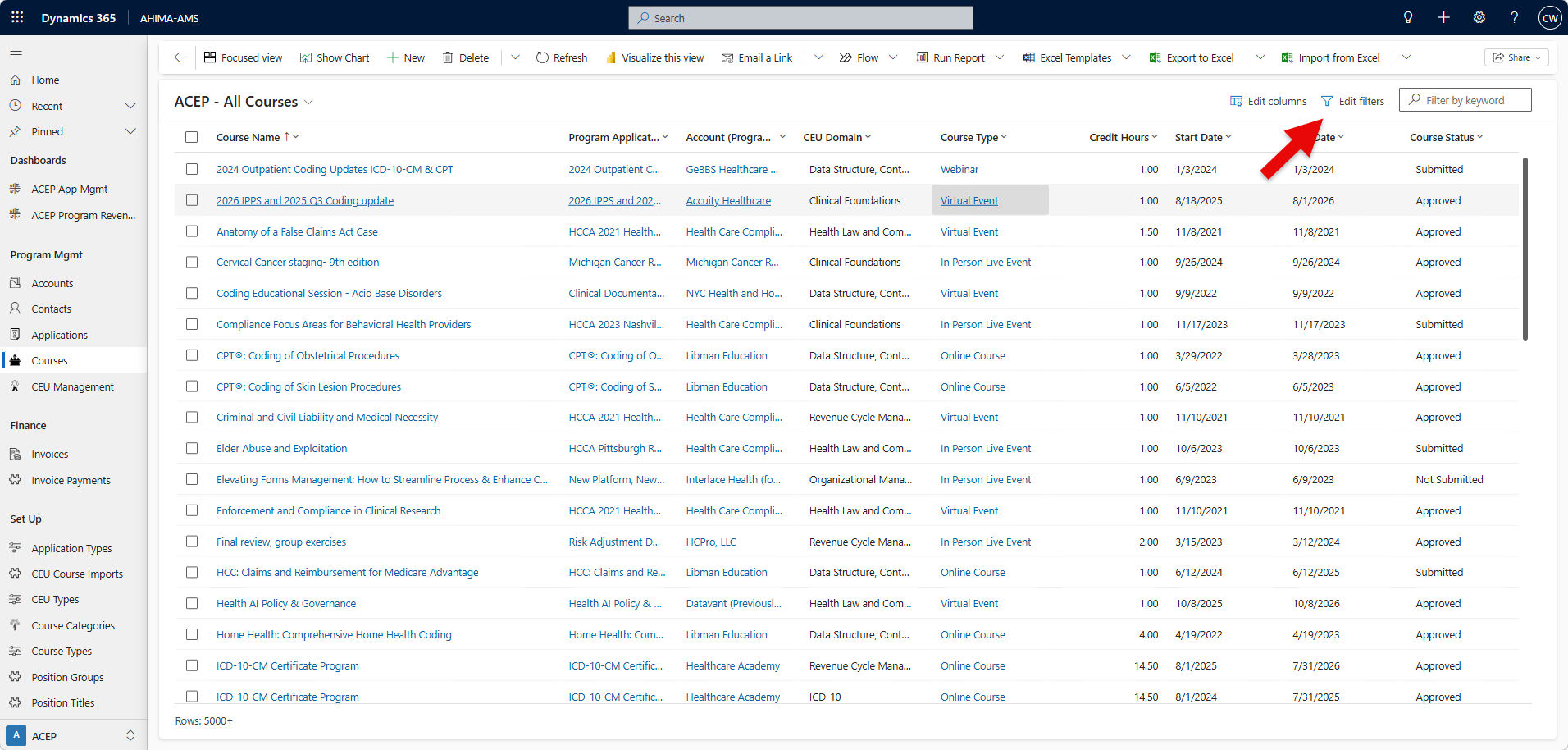
Filter icon allows you to add filter layers to search results.
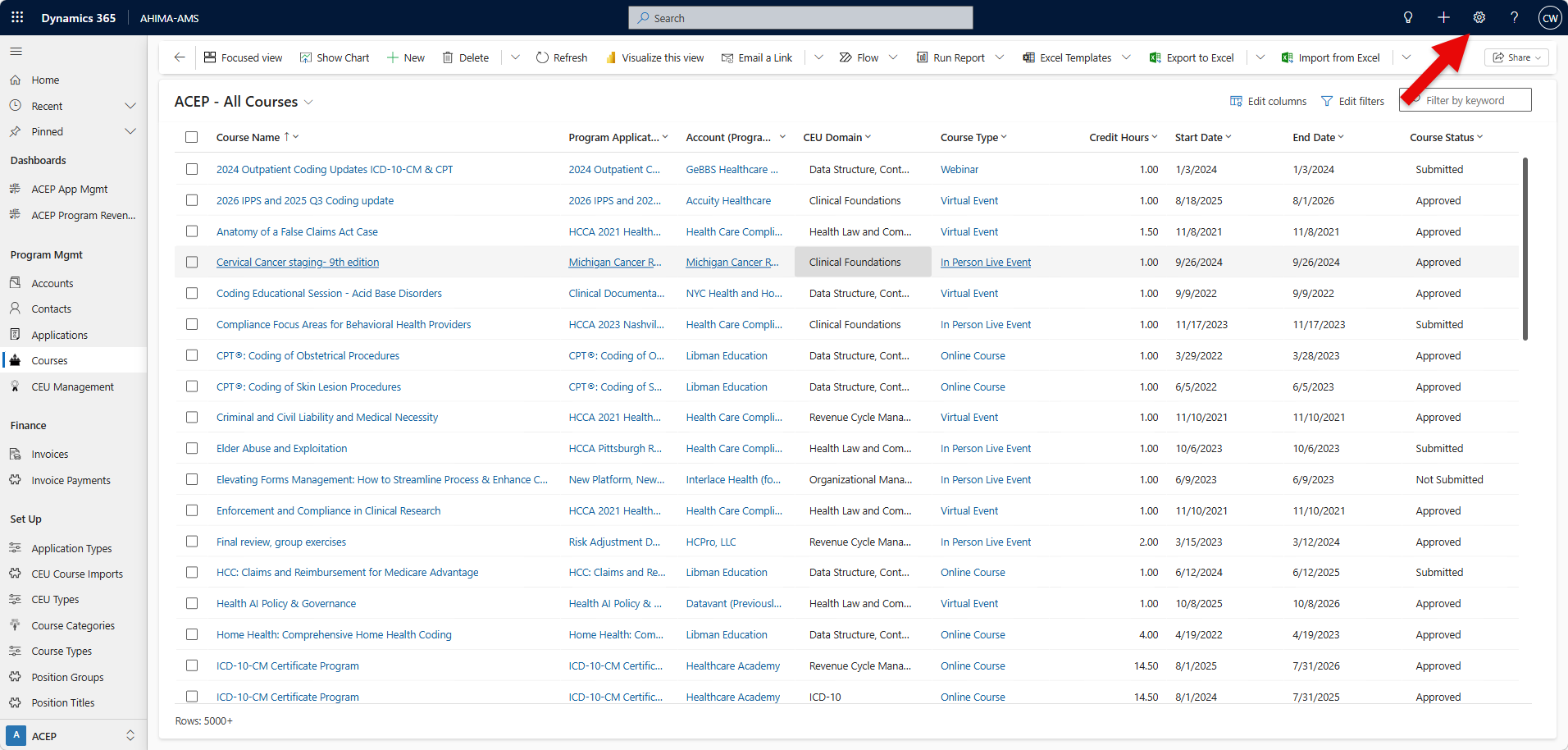
Adjust platform settings
Adjust platform settings:
Go to settings → Personalization Settings → Set personal options
Default pane recommendation to 250
Set the time zone to (GMT-06:00) Central Time (US & Canada) BUSINESS REQUIRED
Add email signature (customize for emails sent through Dynamics system
Adjust colors and image
Create email templates for quick messaging
[Optional] Add Dynamic text to auto-populate contact/account information
Mark "Allow other Microsoft Dynamics365 users to send email on your behalf (required for workflow purposes).
Default currency to US Dollars
Access Recents
Go to "Recent" to view all areas you visited in the platform (e.g. all contacts, account)
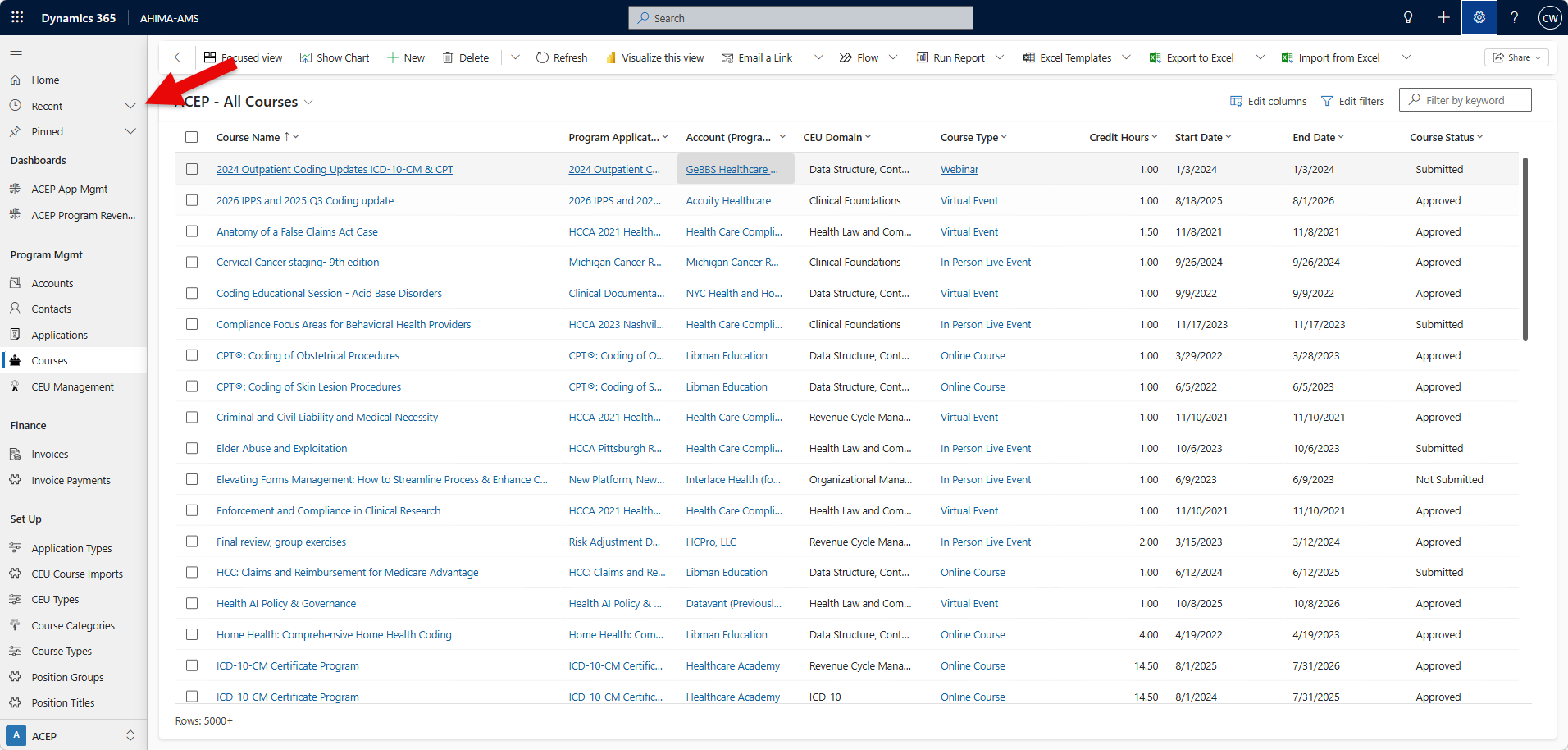
Pin and view recent items.
Click the pin icon to move recently viewed items to your pinned list.
Was this article helpful?
That’s Great!
Thank you for your feedback
Sorry! We couldn't be helpful
Thank you for your feedback
Feedback sent
We appreciate your effort and will try to fix the article