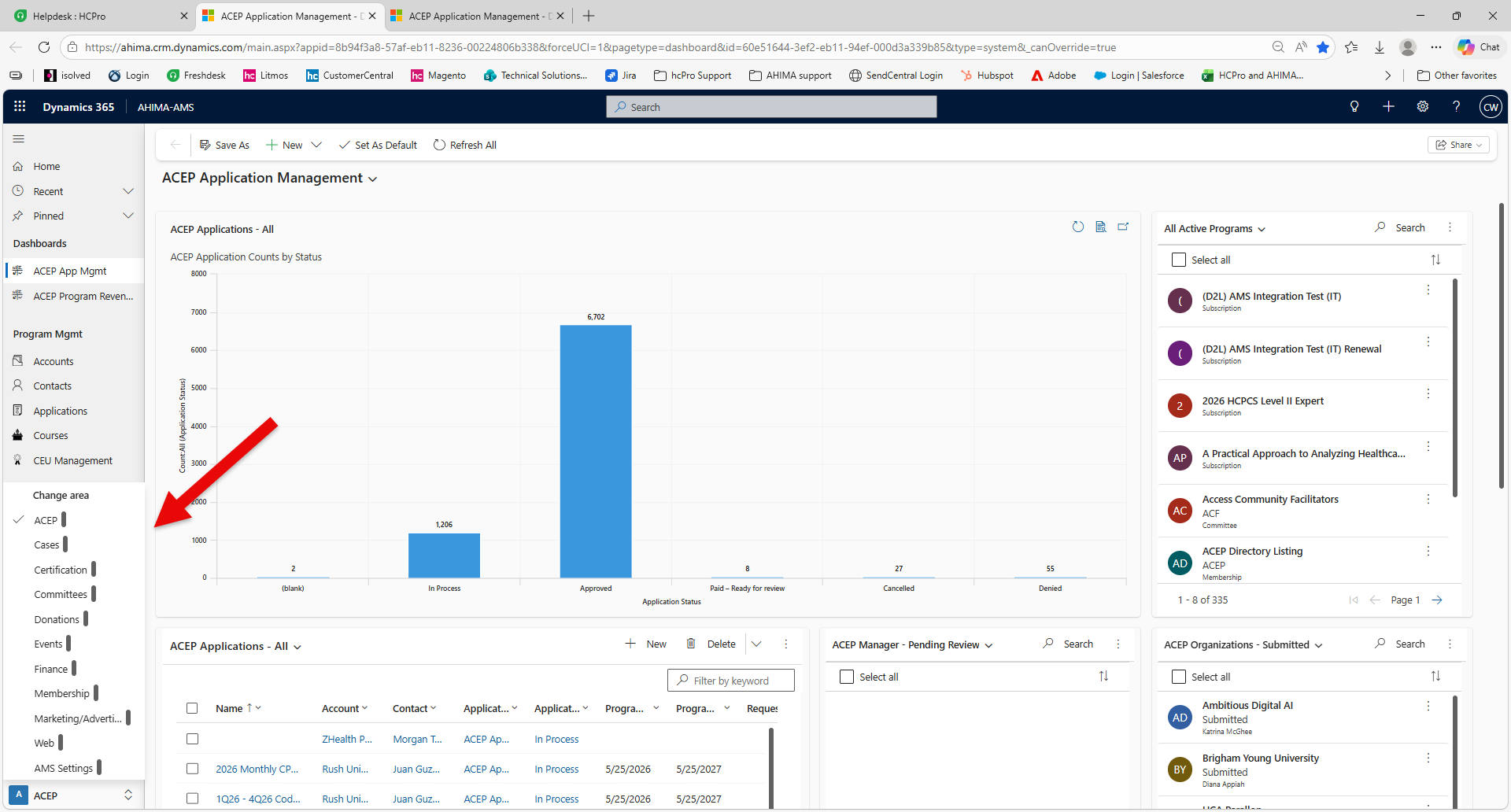
Go to Dynamics: ahima.crm.dynamics.com and log in to Dynamics using your AHIMA credentials. Select one of the dashboards accordingly (e.g. AHIMA-Sales, AHIMA-AMS).
To locate a specific item when you can't remember exactly how it is spelled, try using a wildcard character in a query.
Wildcards are special characters that can stand in for unknown characters in a text value and are handy for locating multiple items with similar, but not identical data. Wildcards can also help with getting data based on a specified pattern match. Use wild card characters in the search box.
Here are some examples of wildcard characters:
Character
Description
Example
*
Matches any number of characters. You can use the asterisk (*) anywhere in a character string.
wh* finds what, white, and why, but not awhile or watch.
?
Matches a single alphabet in a specific position.
b?ll finds ball, bell, and bill.
[ ]
Matches characters within the brackets.
b[ae]ll finds ball and bell, but not bill.
!
Excludes characters inside the brackets.
b[!ae]ll finds bill and bull, but not ball or bell.
Like “[!a]*” finds all items that do not begin with the letter a.
-
Matches a range of characters. Remember to specify the characters in ascending order (A to Z, not Z to A).
b[a-c]d finds bad, bbd, and bcd.
#
Matches any single numeric character.
1#3 finds 103, 113, and 123.
Source: https://support.microsoft.com/en-us/office/examples-of-wildcard-characters-939e153f-bd30-47e4-a763-61897c87b3f4
Was this article helpful?
That’s Great!
Thank you for your feedback
Sorry! We couldn't be helpful
Thank you for your feedback
Feedback sent
We appreciate your effort and will try to fix the article