1. Use this link to launch the impersonation tool: https://ahimab2cfunctions.azurewebsites.net/api/ImpersonatePage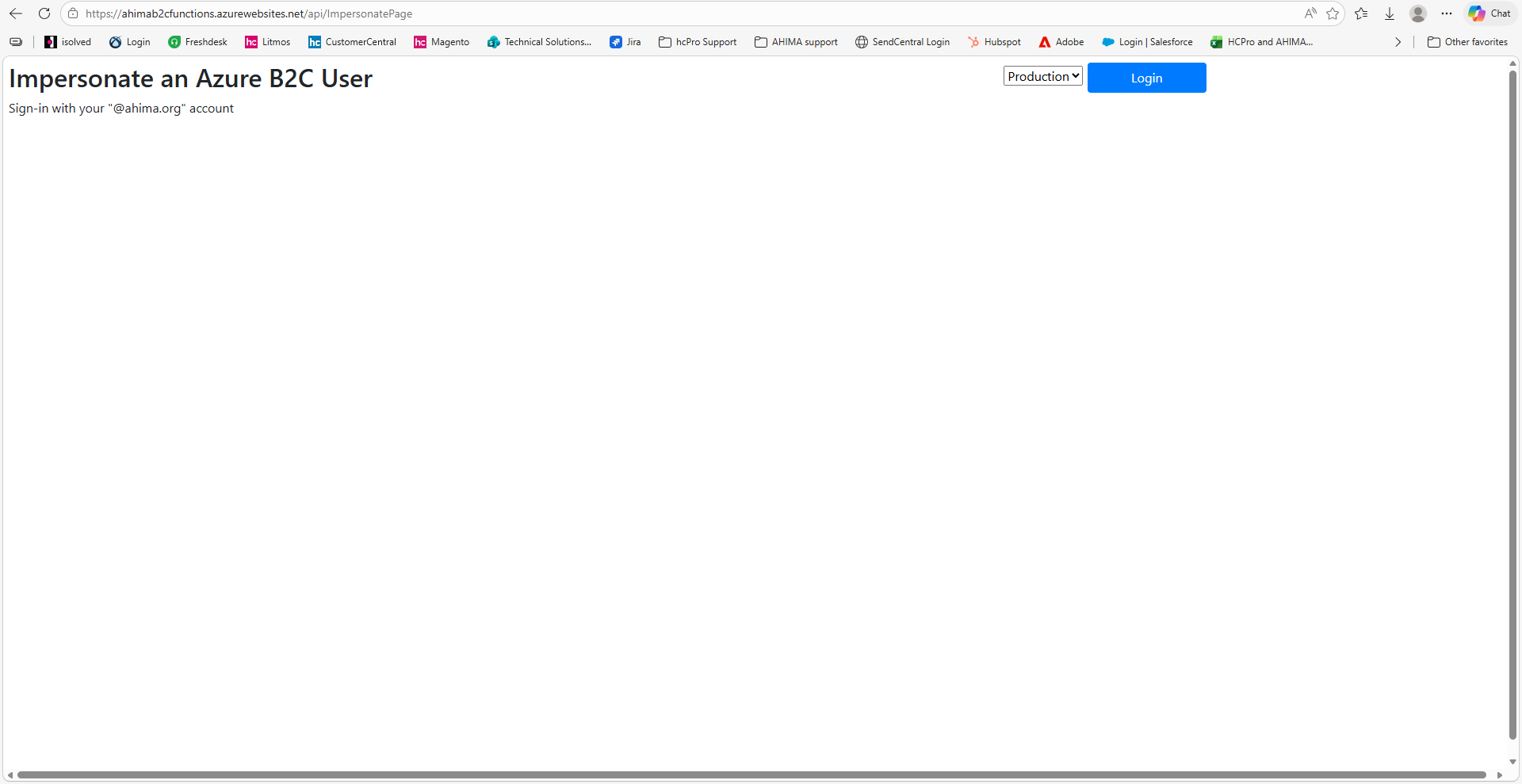
2. Select which environment, if applicable, you want to use the impersonation (typically you will use Production i.e. the live environment)
3. Login with your myAHIMA credentials (the credentials used to login to MyAHIMA)

4. Enter the AHIMA ID (not Aptify PersonID) of the user you want to impersonate
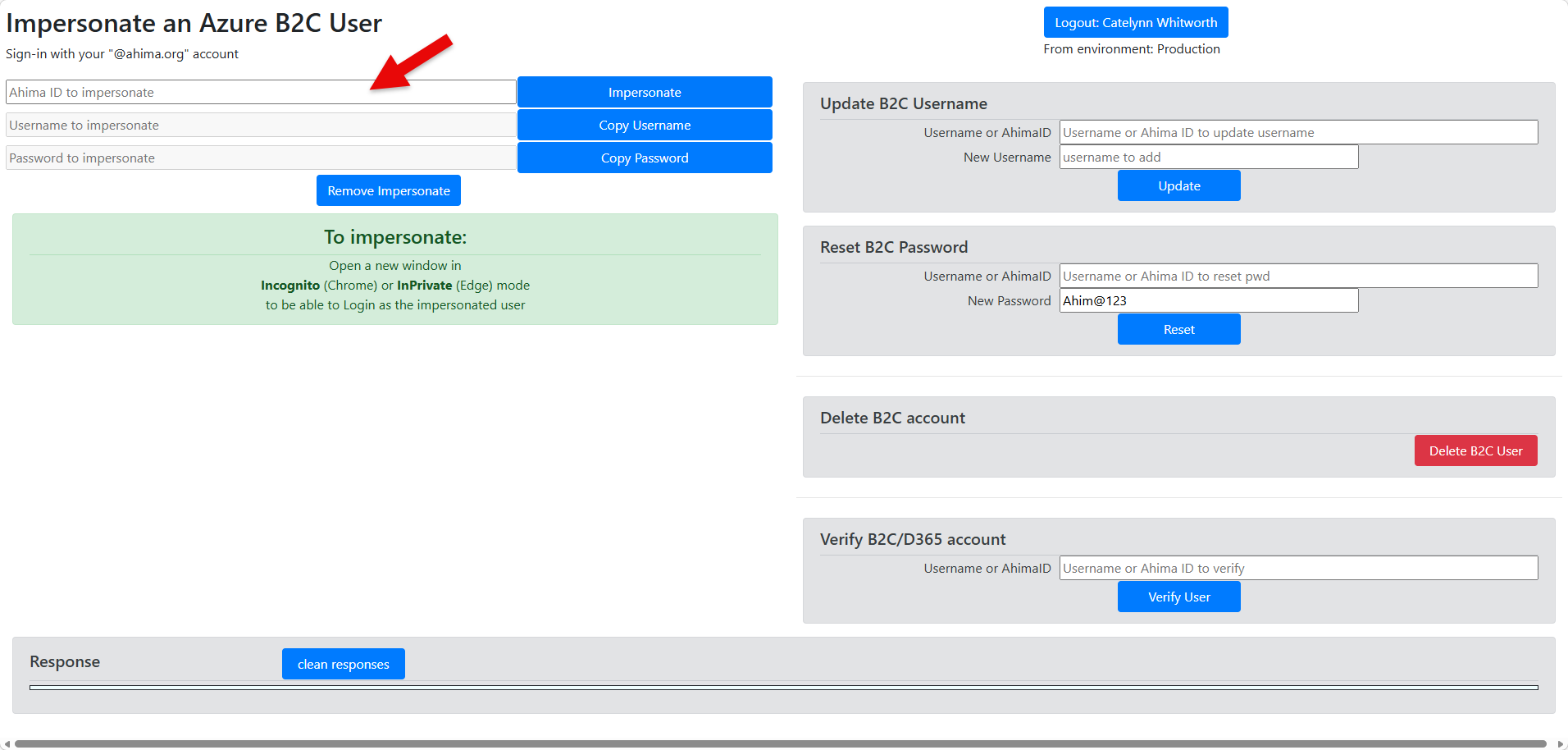
5. Click Impersonate
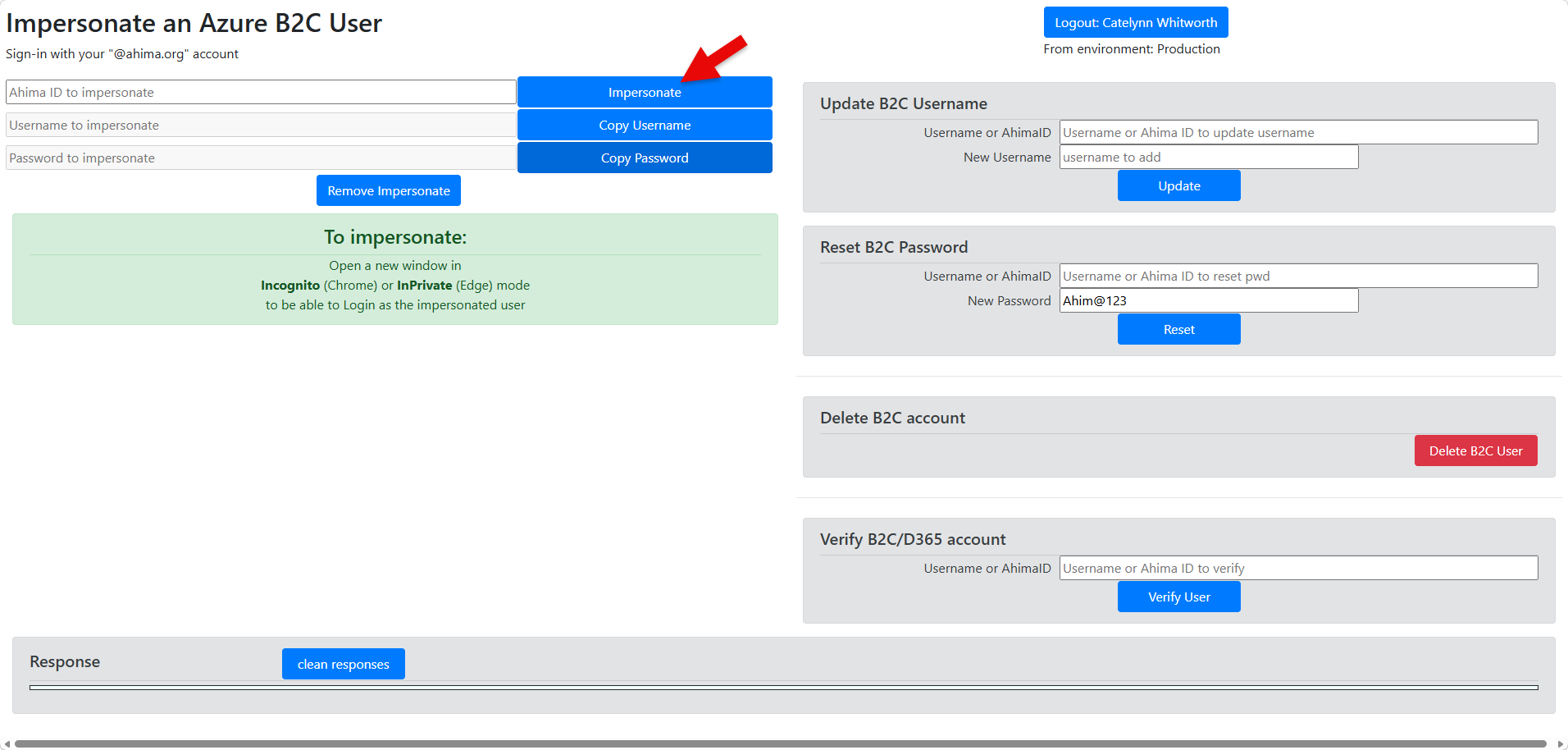
6. This will generate temporary user credentials for that AHIMA ID, username and password
7. Open an incognito window (you can click Ctrl+Shift+N)
8. Go to my.ahima.org (or my-test if you are using the test environment)
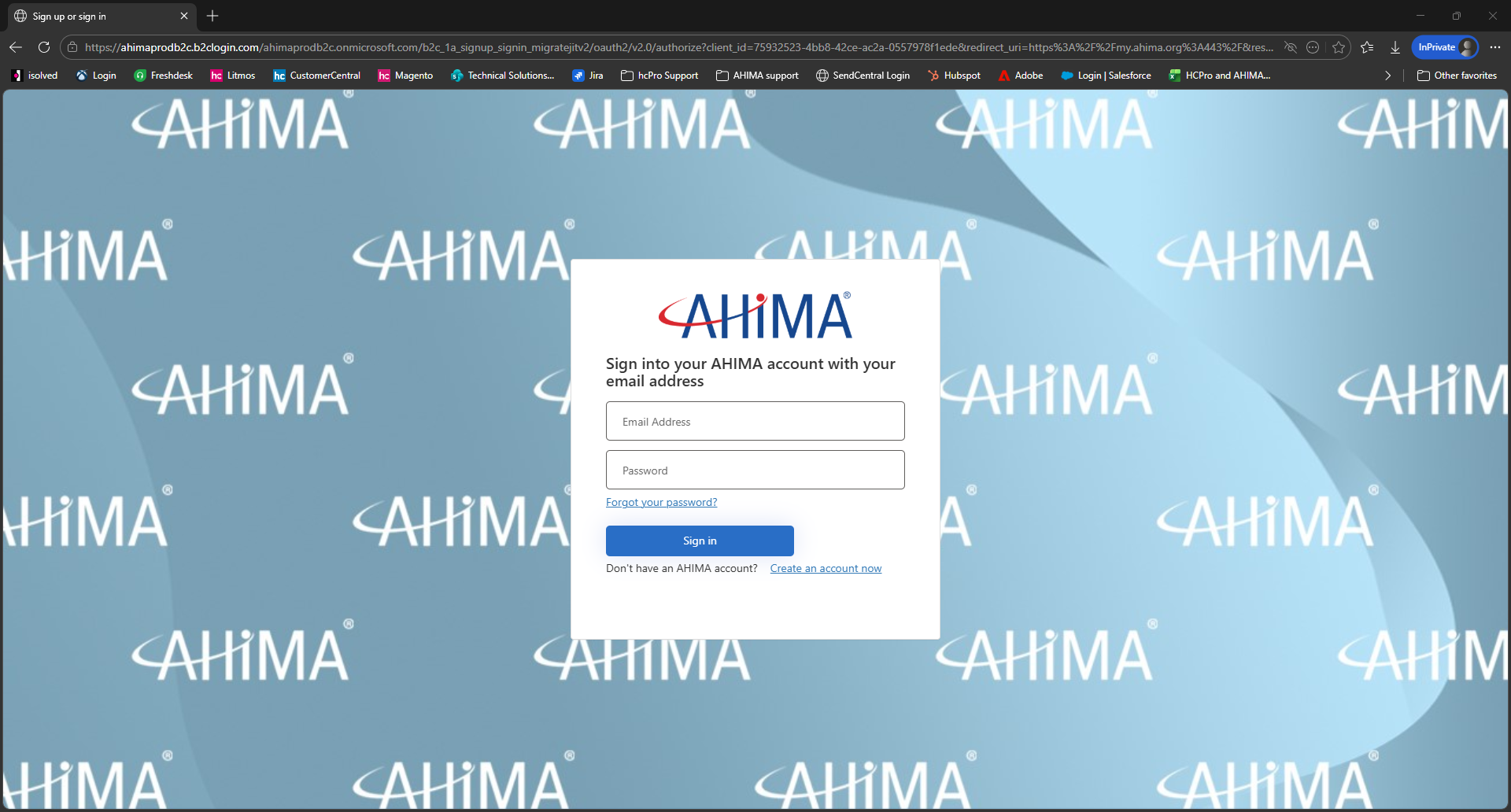
9. Copy and paste the temporary login credentials from the impersonation tool
10. This will log you in as user you are impersonating
Keep in mind, it may have you log in twice. If this happens, copy, and paste the same exact credentials you had previously use to sign in and repeat login steps
To validate you are now impersonating the user of your choice, select the person Icon at the top of the page to view drop-down that contains user's Full Name and AHIMA ID.
11. Once complete with the impersonation, click logout and close the incognito window.
Was this article helpful?
That’s Great!
Thank you for your feedback
Sorry! We couldn't be helpful
Thank you for your feedback
Feedback sent
We appreciate your effort and will try to fix the article