Purpose
The following steps outline how to view documents uploaded by end users through an application file upload process in Dynamics.

Scope
These steps are based on the ACEP file upload process but can be applied to other application-based file uploads in Dynamics, as the storage approach is consistent.
Step 1: Go to Application entity
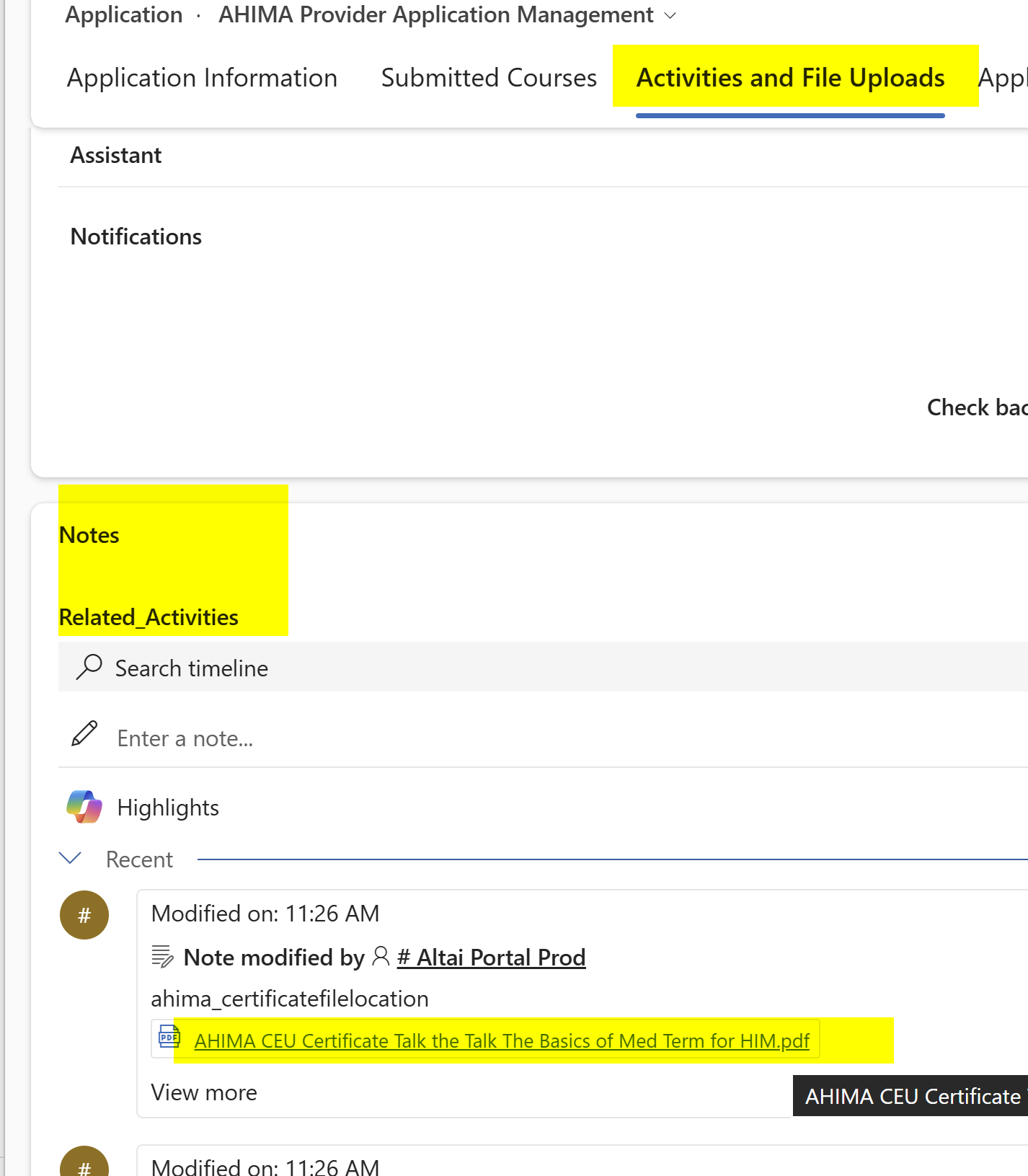
Step 2: Navigate to the Activities and File Uploads tab (ACEP), for Certifications it is the Files and Notes tab.
Step 3: The clickable URL column will contain a clickable icon (world) for a direct file download.
Alternatively,
Step 3: On the same files tab, scroll down to locate the Notes section, or Activities section.
Step 4: Click the blue hyperlinked file attachment for the uploaded file in question.
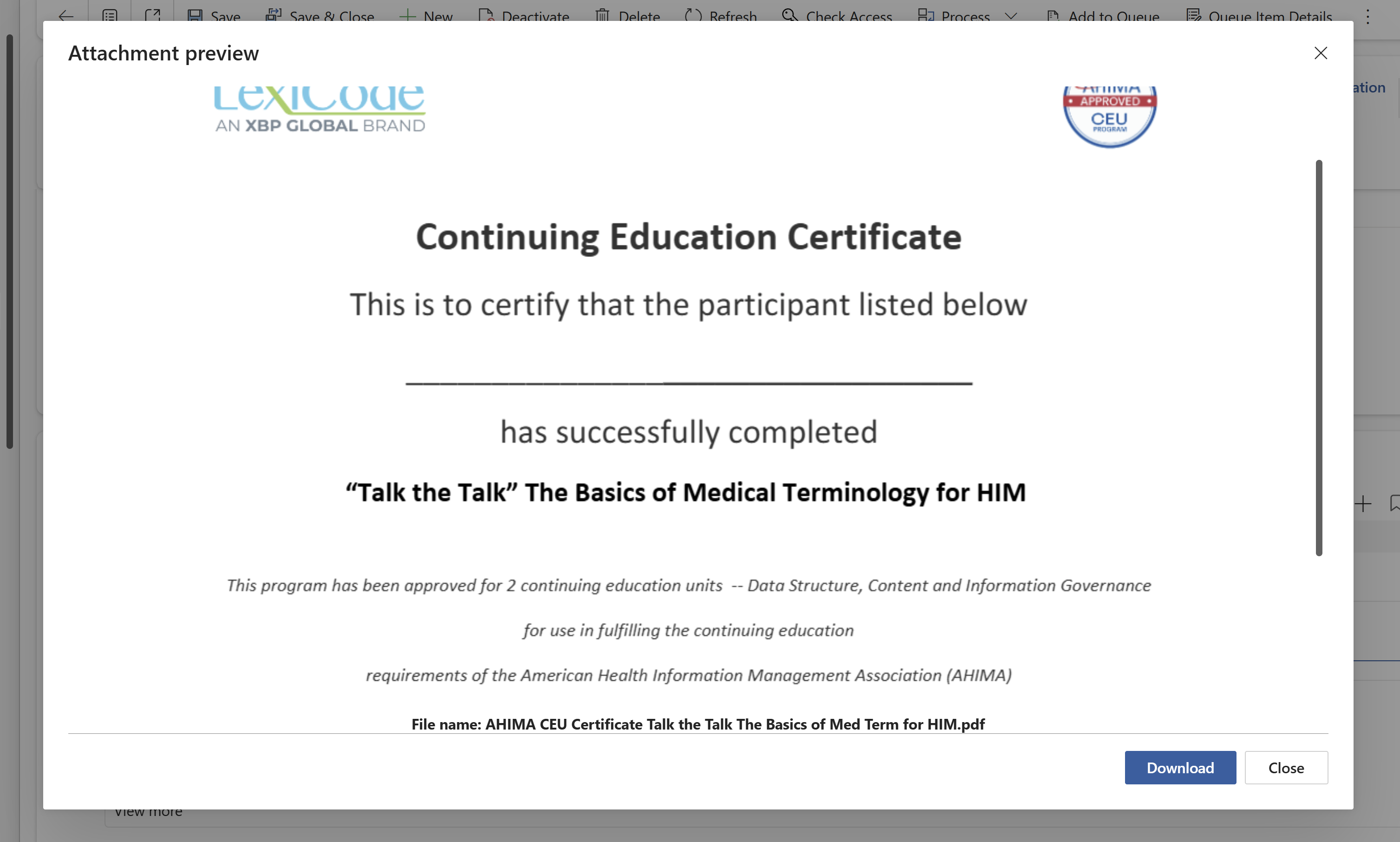
Step 5: Preview the attachment directly in dynamics or click the "download" button.
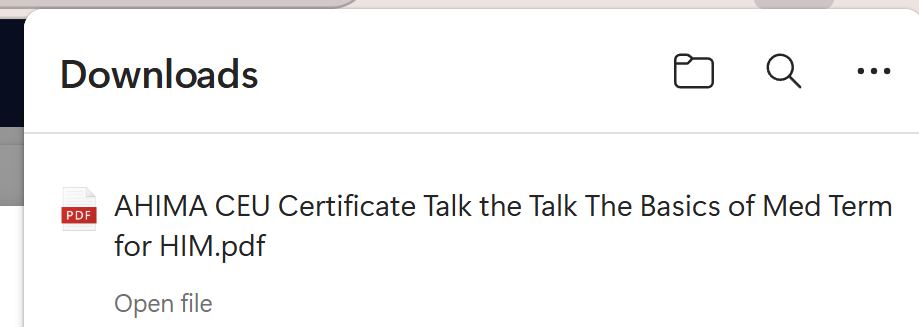
Step 6: File should be directly downloaded to your machine.
End Process.
Was this article helpful?
That’s Great!
Thank you for your feedback
Sorry! We couldn't be helpful
Thank you for your feedback
Feedback sent
We appreciate your effort and will try to fix the article