Emails that are sent from the system are part of back office workflow on-demand processes. Follow the steps below to re-send an email sing an existing stock email template.*
If you do not see the email template, please contact IT to have it converted to an on-demand process.
*The sample screenshots below are directly related to the Scholarship Submission process.
Step 1: Select the record for which you are resending an email.
Step 2: Click on the drop-down arrow next to Flows and select the existing workflow to re-generate email send. (You may need to maximize your browser window, or click on the ellipsis to access the Flows section)
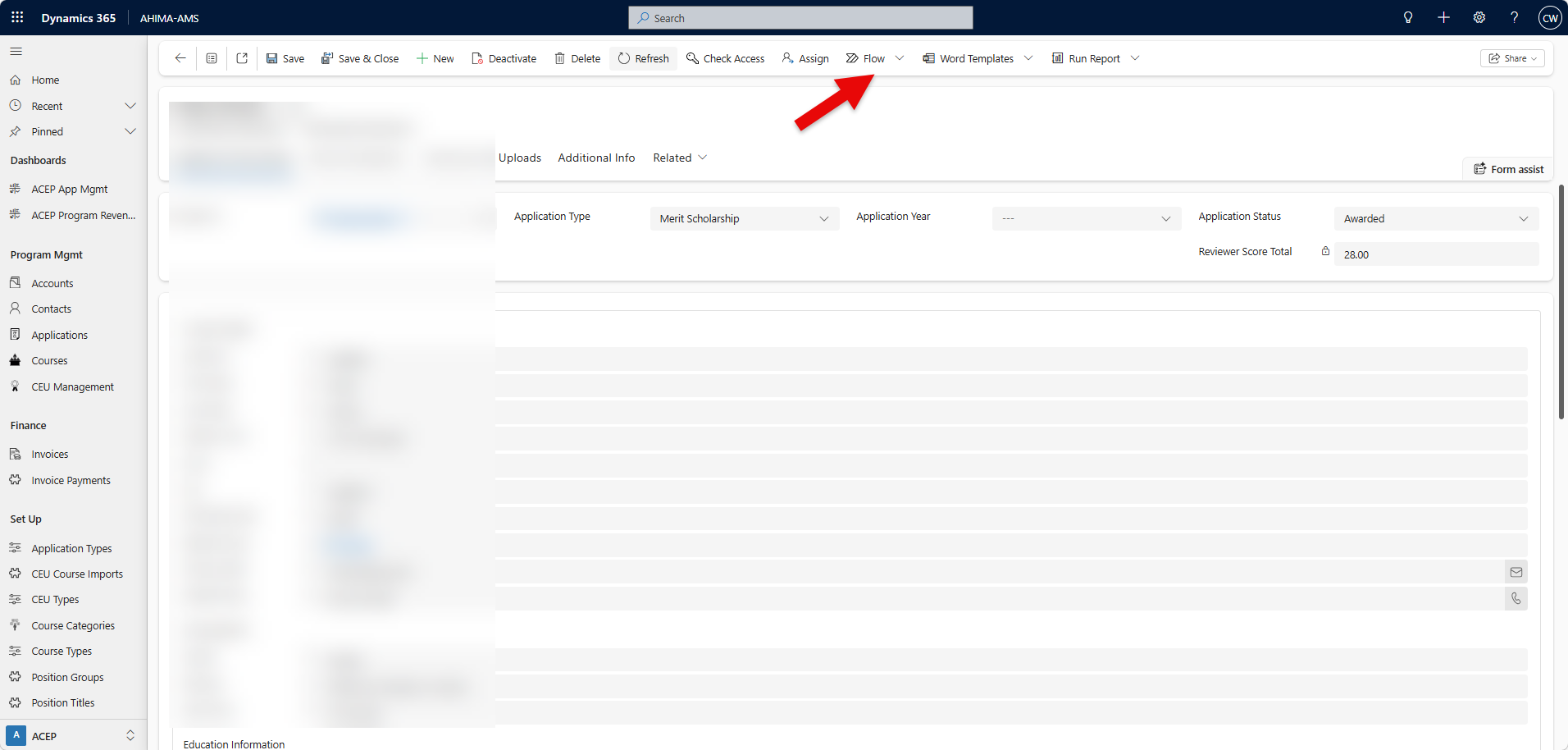
Tip: Hover over the workflow listed below the Run Workflow section to see full workflow name.
Step 3: Click OK to confirm and send email associated with workflow selected.
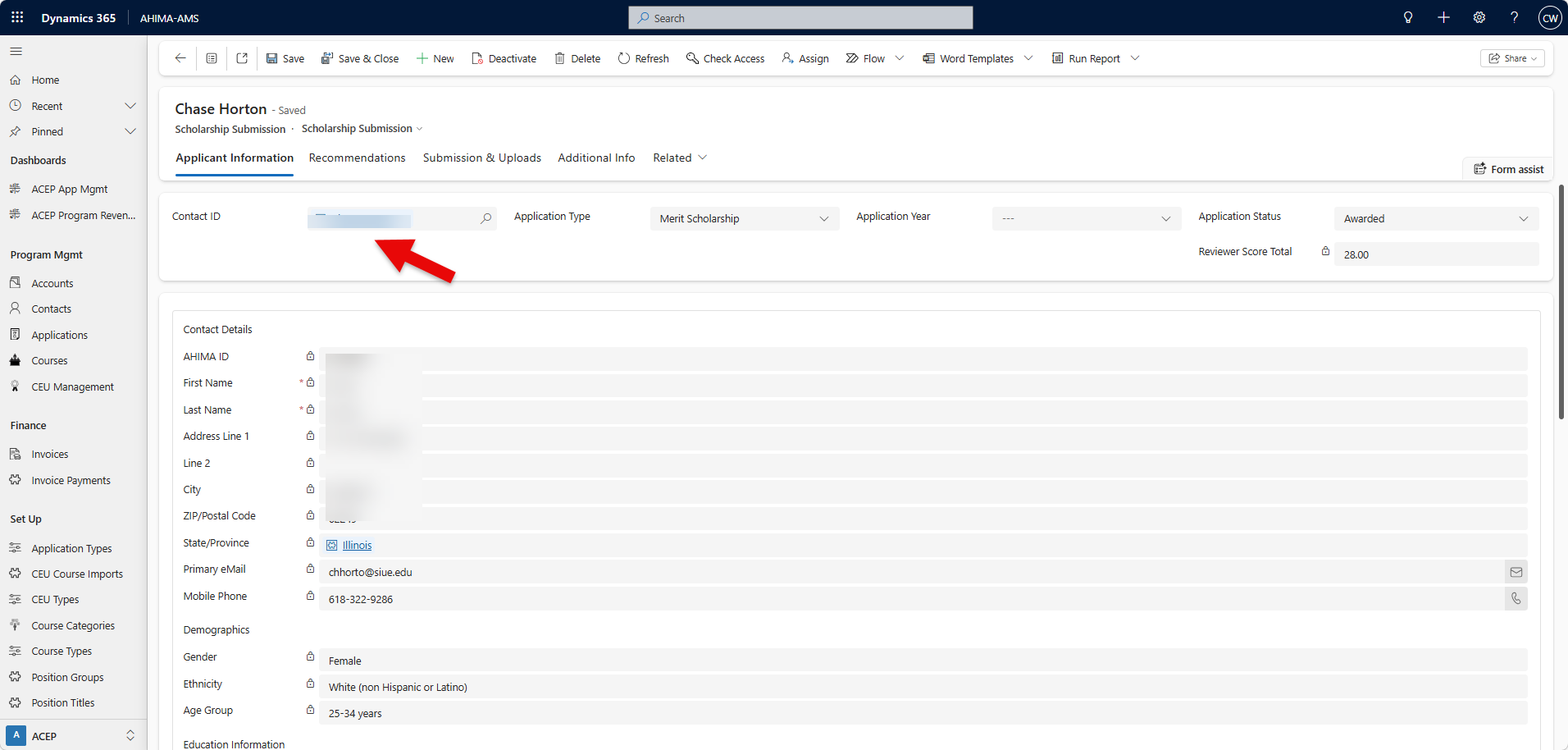
Step 4: Validate the email was sent by opening the Contact record >> Summary tab. All outbound emails are located under Timeline on the Summary page.
Was this article helpful?
That’s Great!
Thank you for your feedback
Sorry! We couldn't be helpful
Thank you for your feedback
Feedback sent
We appreciate your effort and will try to fix the article