Go to Dynamics: ahima.crm.dynamics.com and log in to Dynamics using your AHIMA credentials. Select one of the apps accordingly (e.g. AHIMA-Sales, AHIMA-AMS).
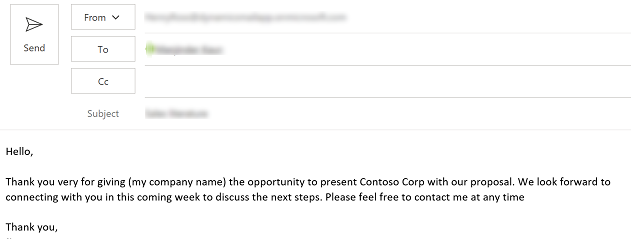
If you frequently send the same type of email, save time by using an email template. When you use an email template, Dynamics App for Outlook automatically inserts the information in the email message.
You must have the appropriate permissions to add email templates. If you receive an error message during the email template creation process, please submit a ticket to AHIMA HelpDesk for advanced support.
1. Open Outlook and start a New Email
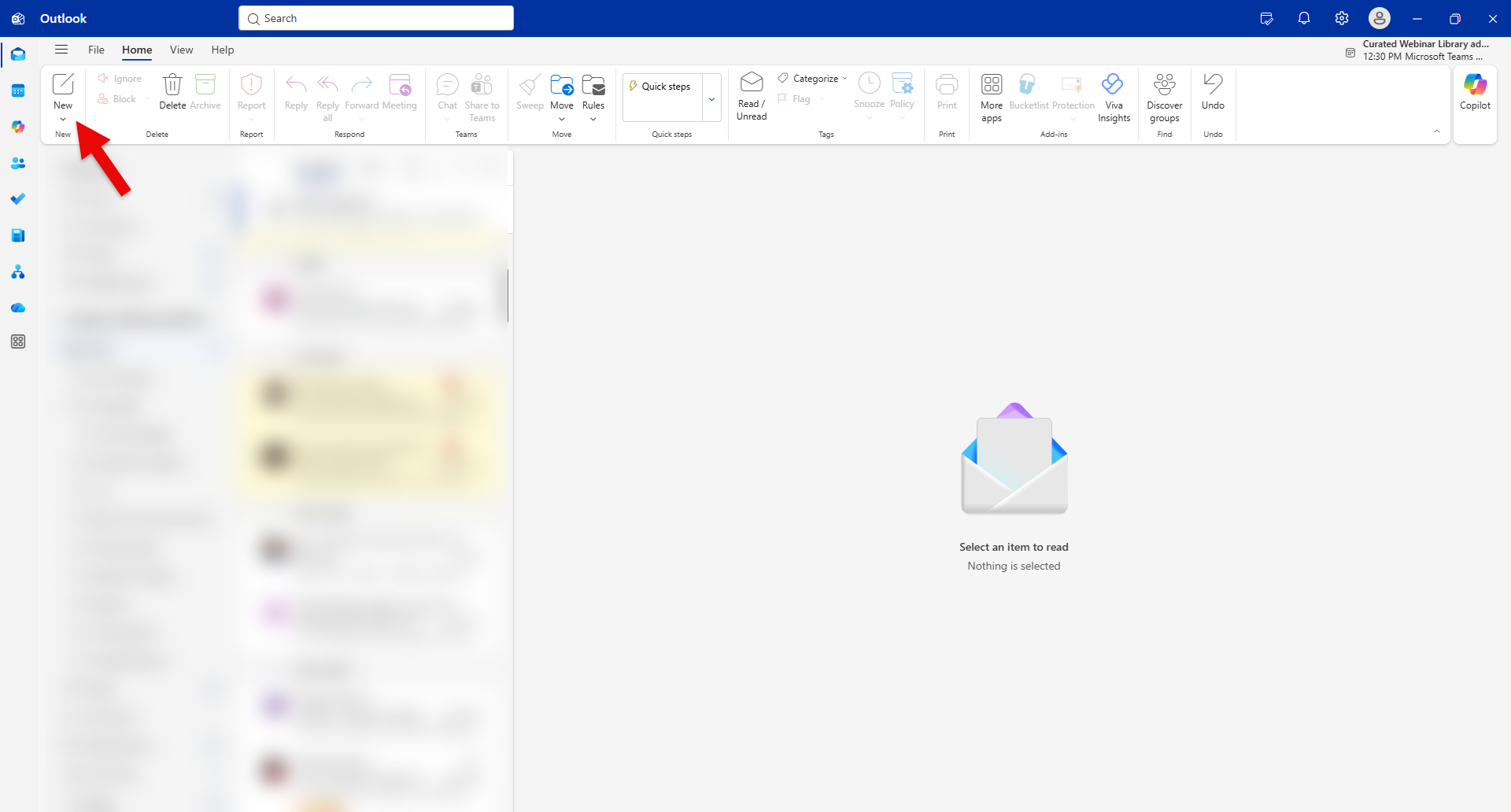
2. Add a recipient to your email draft, then click on Show Dynamics 365 integration button on the top right to open the Dynamics Outlook app

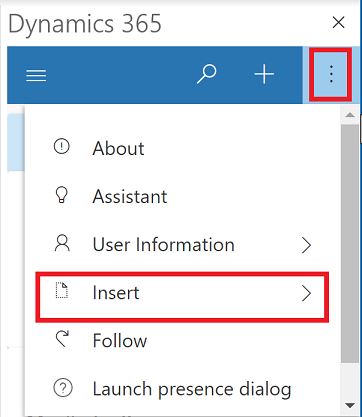
3. Select More commands and then select Insert.
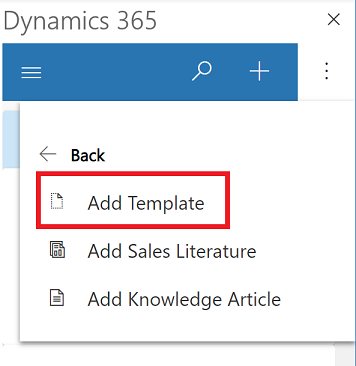
4. Select Add Template.
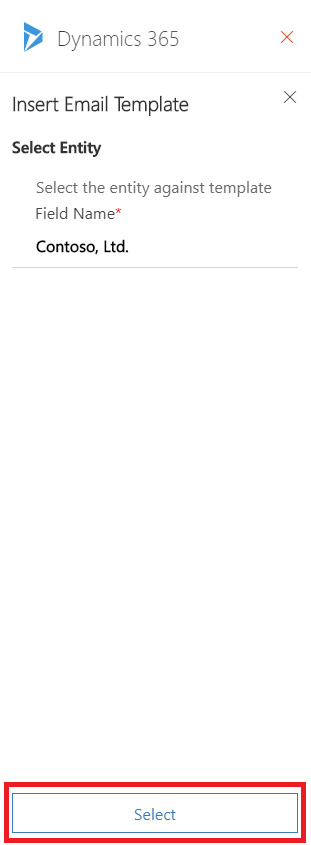
5. Select the record type/entity. The default is the set regarding record and then select Select.
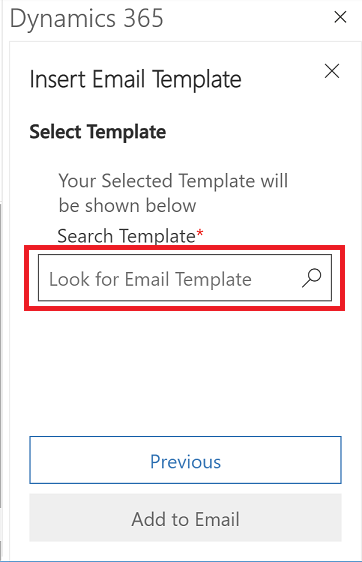
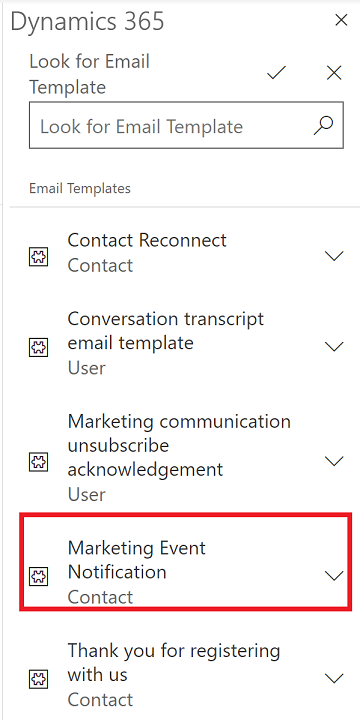
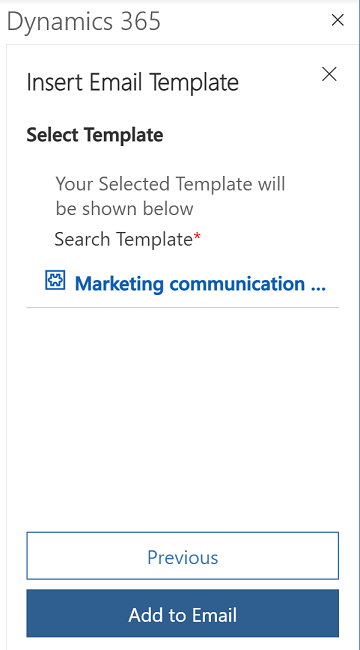
6. Select the search box () to look for an email template.
 Source: https://docs.microsoft.com/en-us/dynamics365/outlook-app/user/email-template
Was this article helpful?
That’s Great!
Thank you for your feedback
Sorry! We couldn't be helpful
Thank you for your feedback
Feedback sent
We appreciate your effort and will try to fix the article