This document contains the following:
Add advanced filter to view
Add Multiple Filter Conditions
Add Group Filter
Add a related table to a condition
Remove View Filter
Add Advanced Filter to View
Tip: Columns added to existing (pre-populated) system views may not generate in excel export list. You must create a new view with desired columns.
Step 1. Select from one of the existing system views or create a new view.
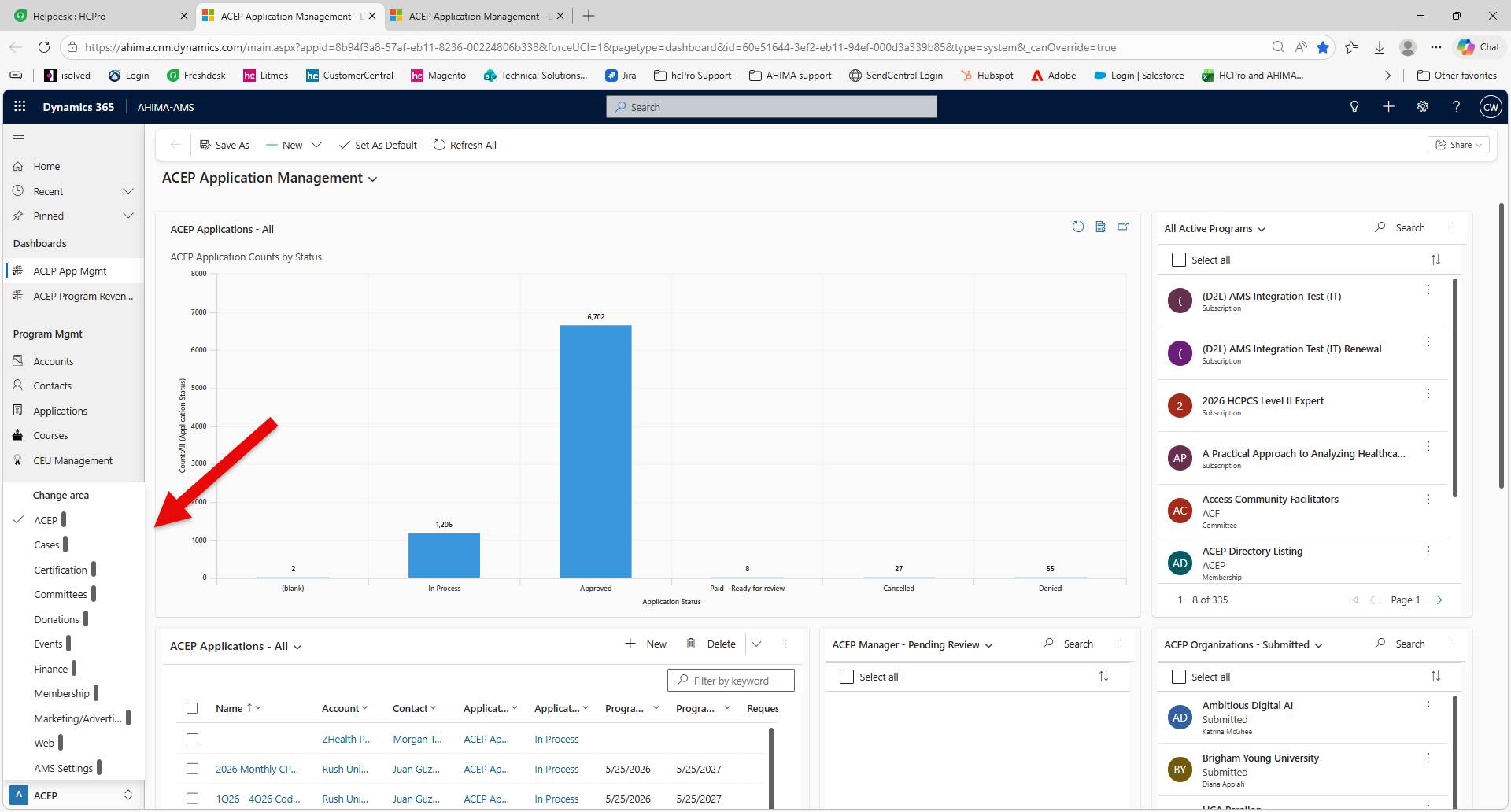
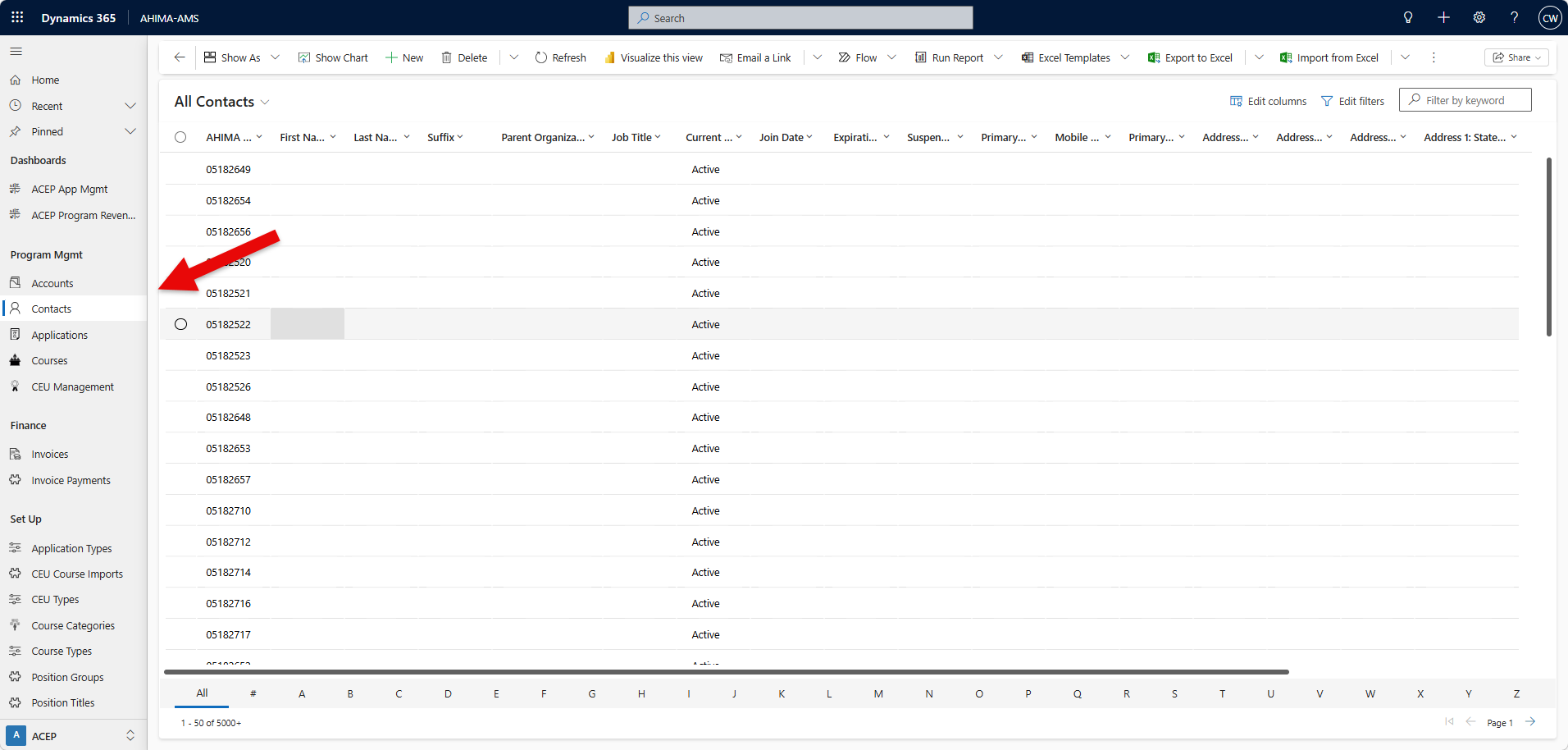
Step 2. Click on the filter icon to open the advanced filtering panel
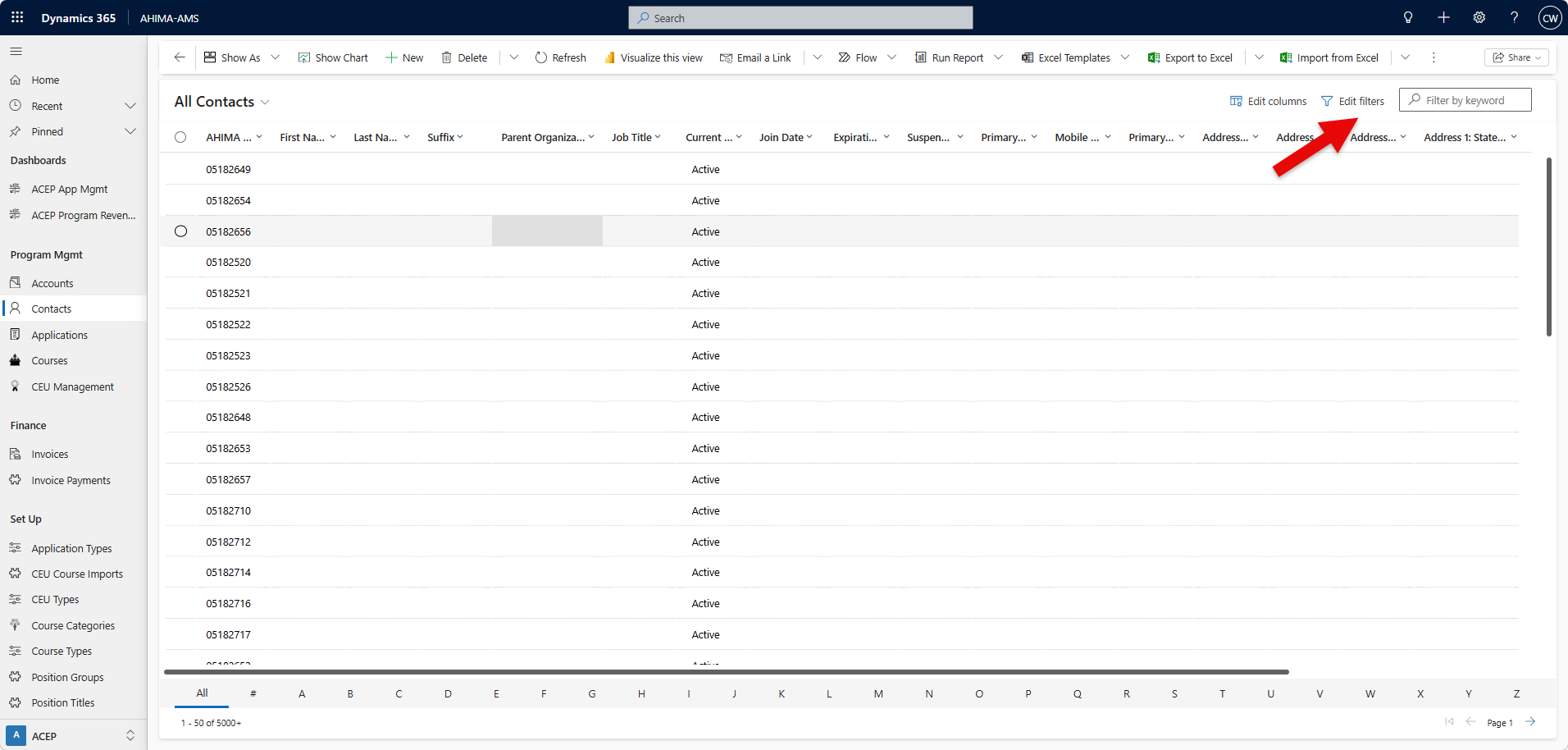
Step 3. You can add row filter to narrow down data.
Step 4. Select an attribute from the drop-down list in the first column.
Step 5. Select an operator from the drop-down list in the second column.
Step 6. Enter a value to filter by in the third column (the value you are using to filter data).
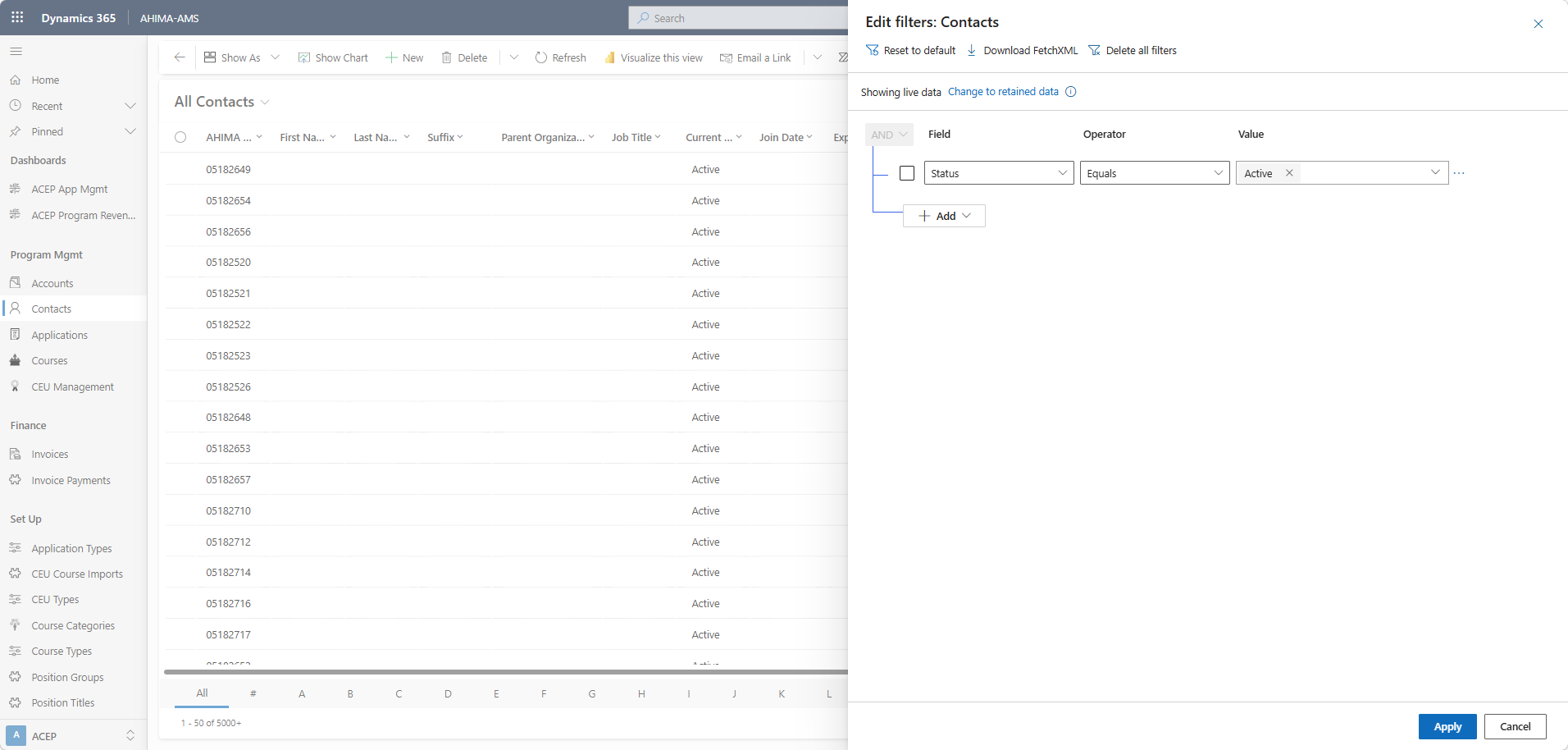
Tip: Some filter conditions don't require a comparison value for the condition. For example, the operator Contains data --OR-- Does not contain data would not require a comparison value. With other filter conditions, a comparison value must be chosen from an option set.
For example, the Status column has an option set that contains the values Active and Inactive.
Tip: An asterisk next to the view name indicates there is an active filter, custom column or sort on the view.
Add Multiple Filter Conditions
Add multiple filters to your view if you want to filter records by using more than one field.
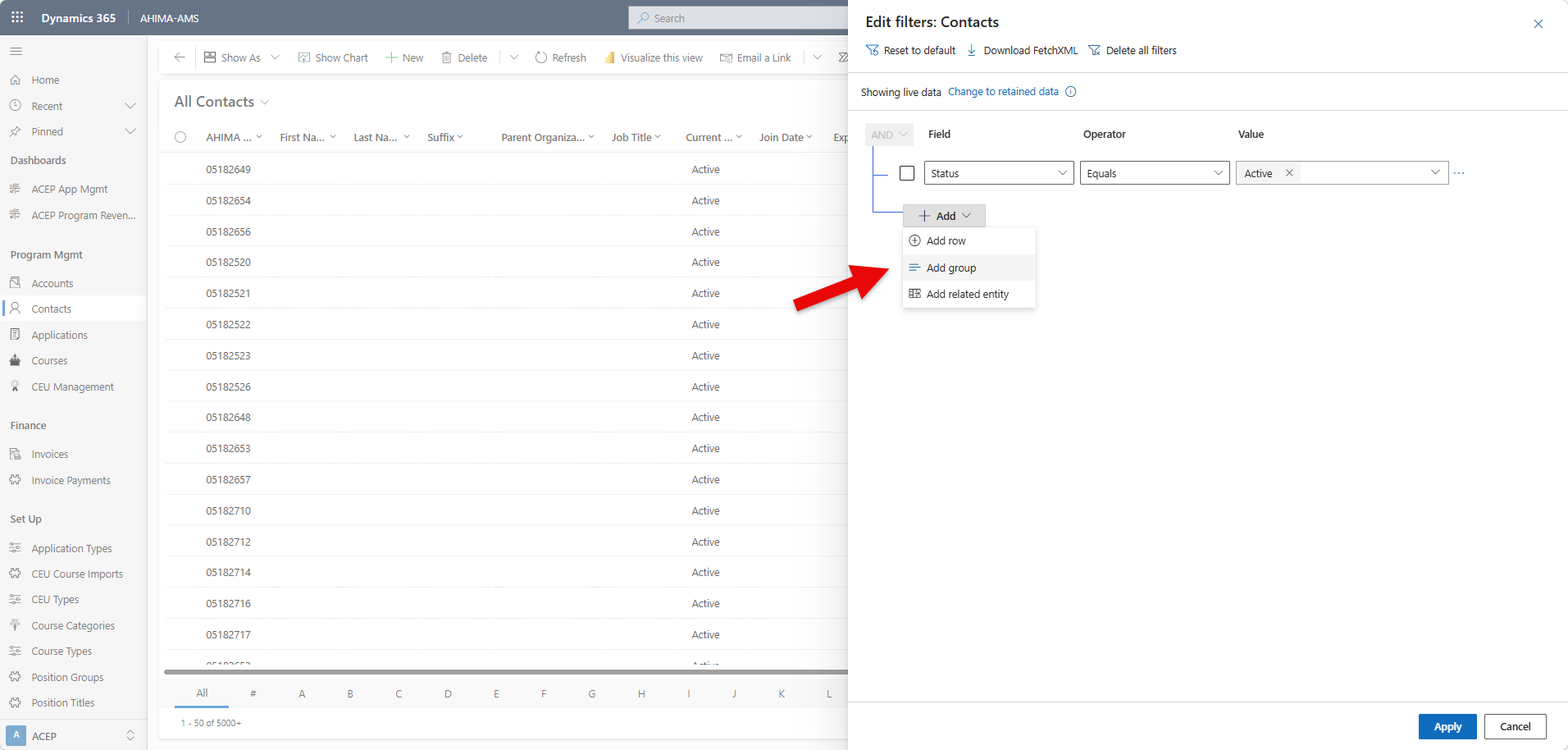
1. Select the filters that you want to group.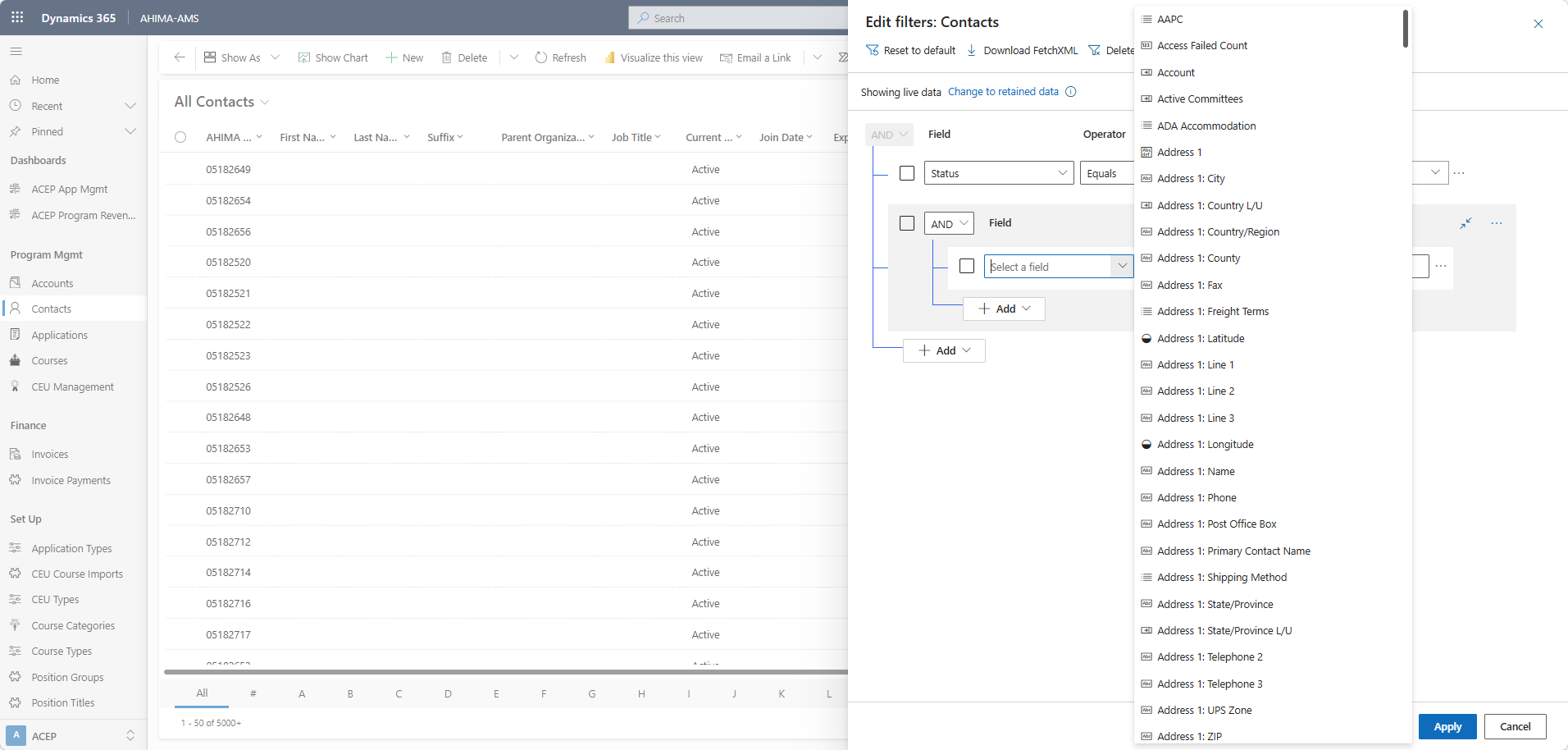 2. Click Apply.
Add Group Filter
Add group filter to add level of condition to expand your data list.
Step 1. Click on + Add drop-down and select Add group.
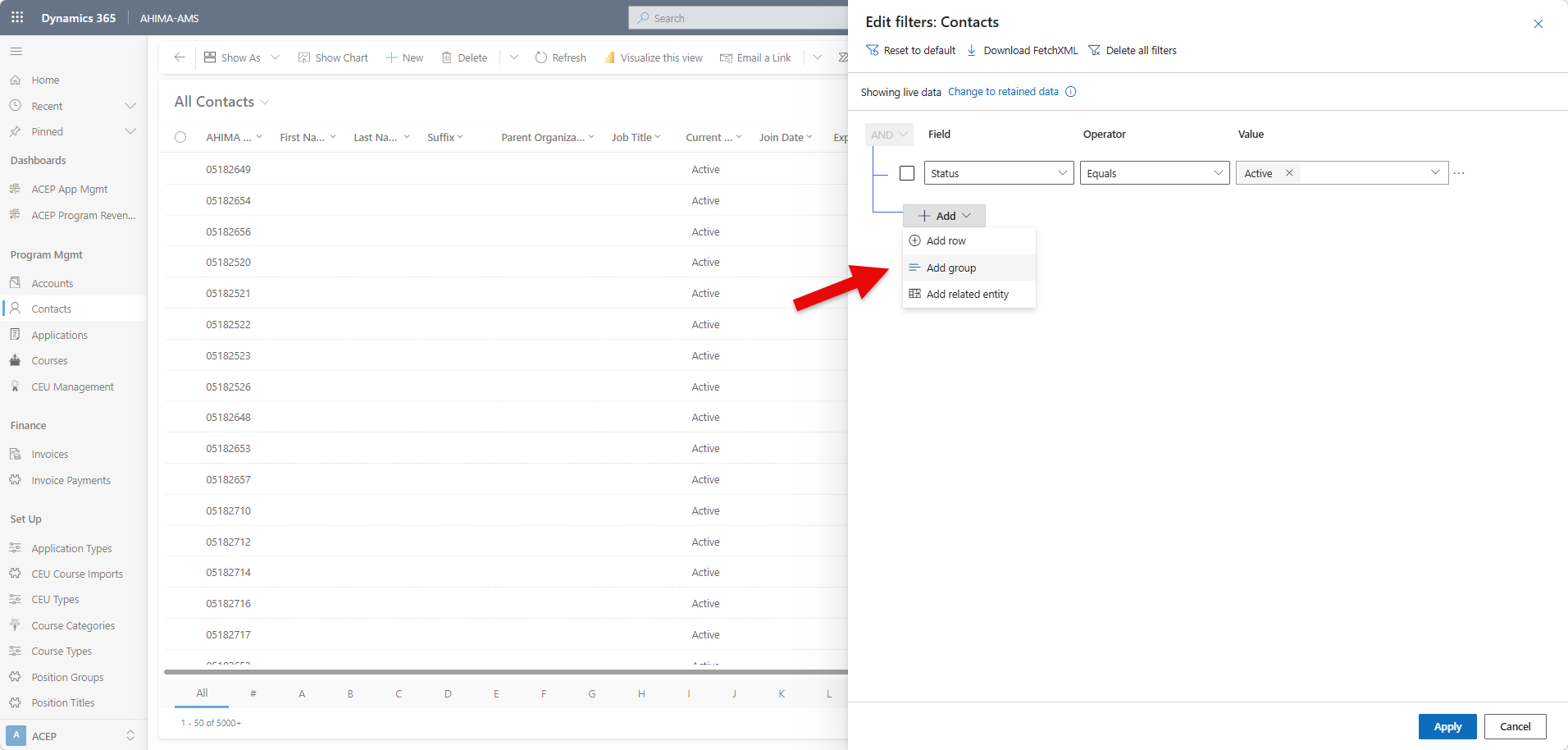
Step 2. Add the filters that you want to group.
Step 3. Click on the to drop-down grouping options and select from AND --OR-- Or.
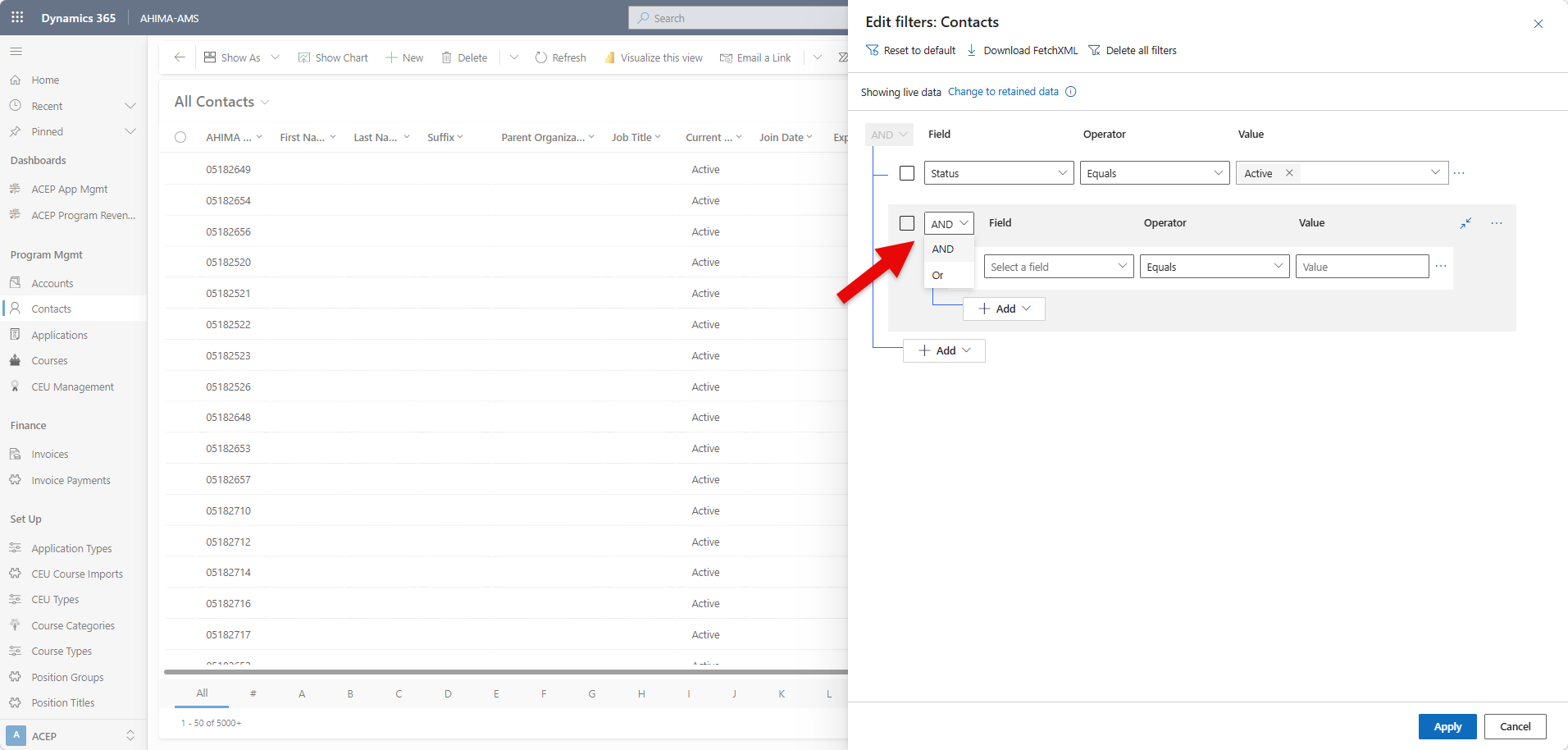
Pro Tip: Select AND to only see data lists that meet BOTH filter criteria displayed in the view. Alternatively, select Or to see data lists that meet ANY of the filter criteria displayed. By selecting Or, you are expanding your filtered data results.
To remove the filter from a group, click on the top ellipsis within the filter group and then select Ungroup.
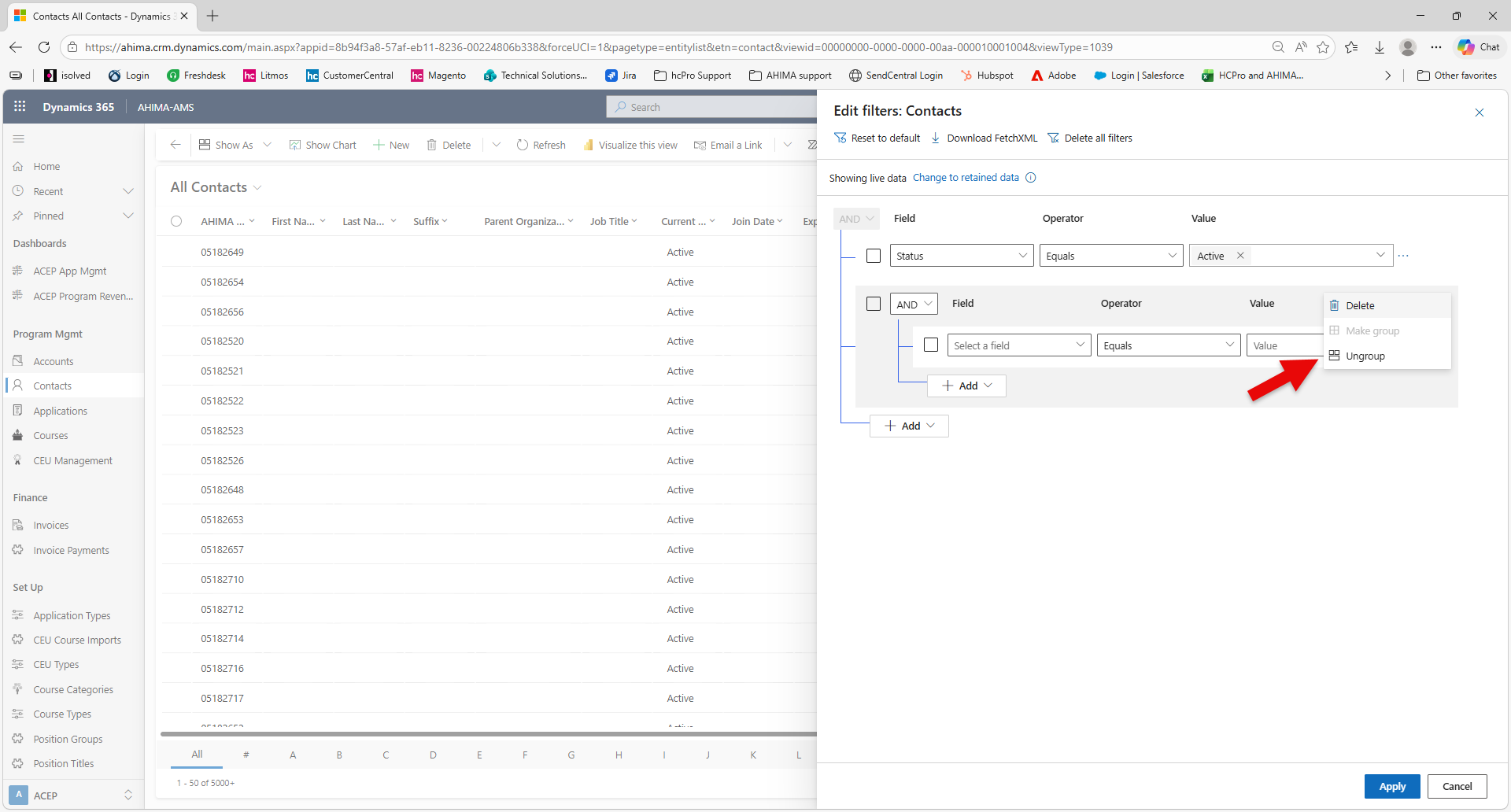
Step 4. Click Apply to run the list view results.
Remove Filter
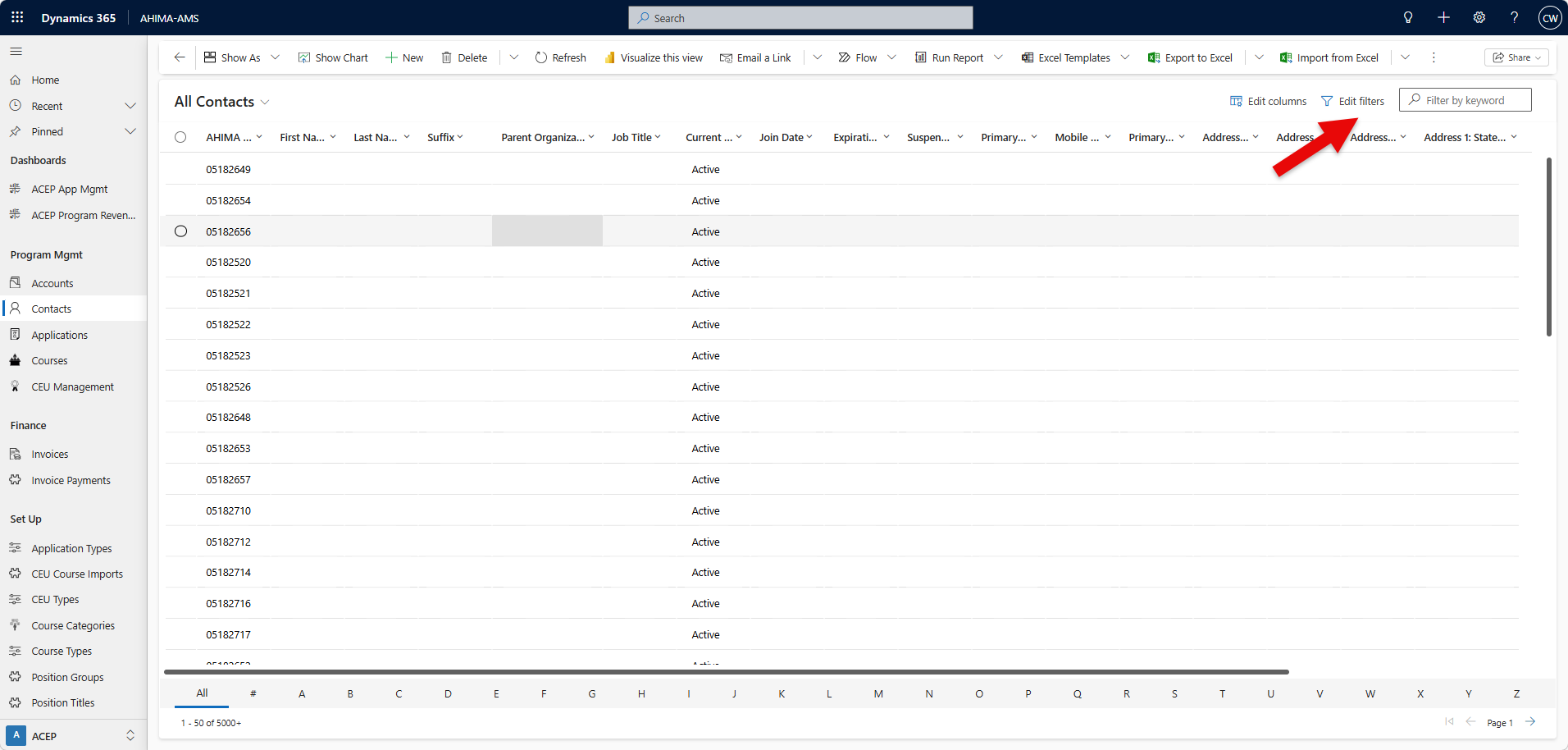
Step 1. Click on the filter icon next to the search box in the view to expand filtering panel.
Step 2. Remove filters by clicking on the ellipses and select "Delete"
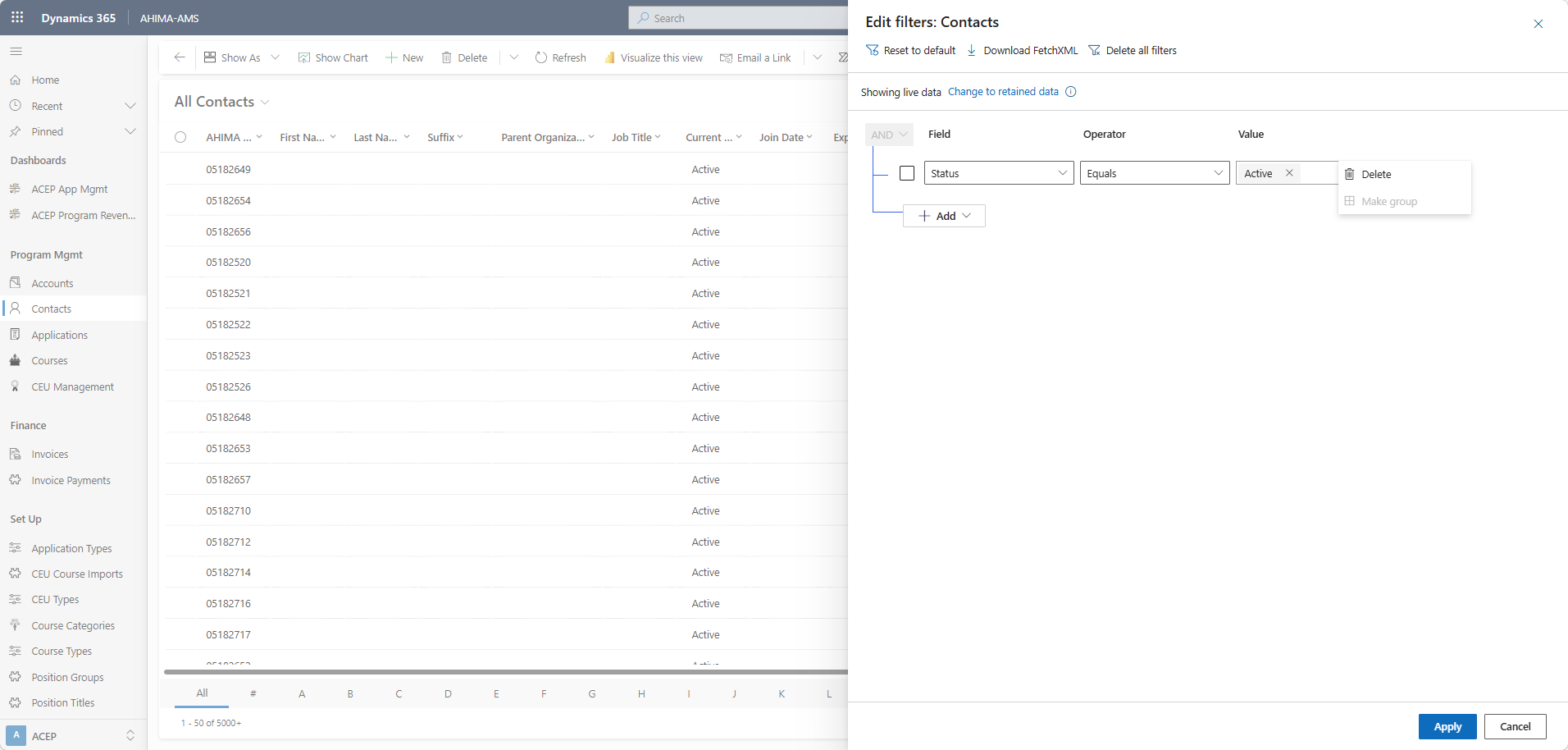
Step 3. Click Apply and refresh the web browser.
Was this article helpful?
That’s Great!
Thank you for your feedback
Sorry! We couldn't be helpful
Thank you for your feedback
Feedback sent
We appreciate your effort and will try to fix the article